Royi Text Editor
A portable, keyboard-focused, lightweight and fast text code editor for Windows.
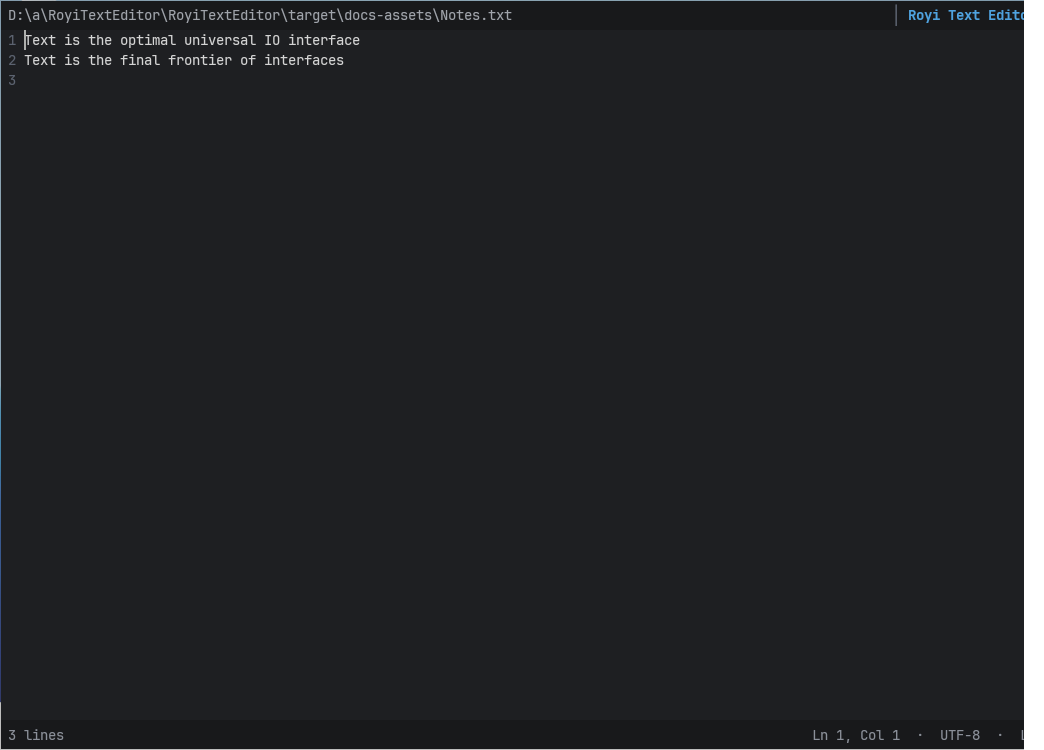
- Minimalistic and focused UI: the whole window is dedicated to text.
- Performance: a file opens in about 14 ms; huge files stay responsive.
- Keyboard oriented workflow, compatible with VS Code keys.
- Safety: atomic saving with a verified backup; external changes are detected.
Installation
- Open the latest release.
- Download
RoyiTextEditor-<version>-windows-x86_64.zip. - Extract the ZIP file to a folder of your choice.
- Run
RoyiTextEditor.exefrom the extracted folder.
Tip
RoyiTextEditor is portable. Keep the extracted files together and move the folder whenever needed.
Requirements: Windows 11, x64 CPU with AVX2.
Usage
RoyiTextEditor.exe [--read-only] [--syntax <id>] [--spelling <engine>] [file]
| Option | Effect |
|---|---|
--read-only | Open files without allowing edits |
--syntax <id> | Highlighting language, e.g. json (ids); none or off disables it |
--spelling <engine> | Spelling off, or on with builtin, hunspell or windows |
New files are created only from the command line: a path that does not exist opens an empty document and the first save creates it.
Unsaved changes show ● in the title strip. A file with the Windows
Read-only attribute is not saved: the ● turns orange and the status line
asks to clear the attribute and save again; the editor never changes
attributes. A file whose lines end with a lone CR is shown as one line, and
the status line says so. Files and Saving describes
these and the other unusual cases.
One File per Session
Each window is a session that edits one file. It never starts, closes or talks to another session. This keeps the editor simple and fast, and fits its main use: opening a file from a file manager.
- Empty state. Started without a file, or after Ctrl+W,
the window shows
Drop a file here to open it. Nothing can be edited; the Command Palette, About, Keyboard Shortcuts and zoom still work. - Drag and drop. Drop a file on the window to open it. It replaces the current file only when that file has no unsaved changes; otherwise the status line asks you to save or close it first. Only the first of several dropped files opens; folders are refused.
- Close and quit. Ctrl+W closes the file and keeps the window; Alt+F4 quits. Both ask first about unsaved changes.
Note
Windows does not deliver drops from Explorer to an editor running as administrator.
Keys
| Keys | Action |
|---|---|
| Ctrl+Left / Ctrl+Right | Move by word |
| PgUp / PgDn | Move by page |
| Home / End | First non-blank character / line end |
| Ctrl+Home / Ctrl+End | Start / end of file |
| Shift with any move | Extend the selection |
| Ctrl+Z, Ctrl+Y | Undo, redo |
| Ctrl+C / X / V | Copy / cut / paste (whole line without a selection) |
| Ctrl+S | Save |
| Ctrl+= / Ctrl+- / Ctrl+0 | Zoom in / out / reset |
| Ctrl+W | Close the file (back to the empty state) |
| Alt+F4, Ctrl+Shift+W | Quit; unsaved changes ask first |
| Ctrl+Shift+P, F1 | Command Palette |
| Ctrl+P | Recent and favorite commands |
| Ctrl+F / Ctrl+H | Find / replace |
| Ctrl+D, Ctrl+Shift+L | Add next occurrence, select all occurrences |
| Ctrl+Alt+Up / Down | Add a cursor above / below |
| Alt+click, Shift+Alt+drag | Add a cursor, column selection |
| Ctrl+K M | Change Language Mode |
| Ctrl+/, Shift+Alt+A | Toggle line / block comment |
| Ctrl+Shift+O | Go to a symbol |
All keys, including search options and replace, are listed in Keyboard Shortcuts.
Search
Ctrl+F opens the search box, seeded with the selection or the word at the caret. Three modes: Text (default), Glob (Alt+G) and RegEx (Alt+R), with Match Case, Whole Word and Find in Selection. Large files are searched on a background thread: the count streams in and the editor keeps responding. Ctrl+Alt+Enter replaces all matches in one undo step.
Syntax Highlighting
Code is highlighted with built-in tree-sitter grammars for Bash, Batch, C, C#, C++,
CSS, Go, HTML, INI, Java, JavaScript, JSON, Julia, Lua, Markdown, MATLAB, Octave,
PowerShell, Python, Rust, SQL, TOML, TypeScript (and TSX), XML and YAML. The
language follows the file name or a #! line and is shown on the status line;
Ctrl+K M changes it. The window opens with
plain text and the highlights follow within milliseconds; large files are
highlighted around the view first. Markdown also highlights code fences, front
matter and HTML blocks, and HTML its scripts and styles.
Windows Batch files (.bat and .cmd) use Batch highlighting automatically.
Use --syntax batch or select Batch in Change Language Mode to override it.
INI files (.ini, .cfg, .inf, .editorconfig, .gitconfig,
.gitmodules) highlight sections, keys and comments.
Code-aware editing: comments (Ctrl+/, Shift+Alt+A), auto-closing brackets and quotes, indentation after an opening bracket, the matching bracket (Ctrl+Shift+\), Expand and Shrink Selection (Shift+Alt+Right / Left) and Go to Symbol (Ctrl+Shift+O).
Spelling
Spelling is off by default; turn it on with spelling.enabled: true,
--spelling builtin or View: Toggle Spelling. US English words of plain
text and Markdown prose get a blue wavy underline when misspelled (Markdown
code, links, HTML and front matter are skipped; code files are not
checked). With the caret on one, the status line shows
Spelling: recieve (Ctrl+.).
- Ctrl+. lists suggestions first, then Add to Dictionary, Ignore and Next/Previous Misspelling; Ctrl+., Enter fixes the word in one undo step.
- F8 / Shift+F8 select the next / previous misspelled word, wrapping at the end of the file.
- Engines (
spelling.engine):builtin(a word list in the executable, the default),hunspell(the shippedDictionaries/en_USfiles, or the pair named byspelling.hunspell) andwindows(the Windows spell checker for US English). An engine that cannot start is reported and the built-in one is used. - Added words are kept in
UserSettings/Spelling/en_US.txtfor all engines; ignored words last for the session. - Markdown is checked while syntax highlighting is on; with
--syntax nonea Markdown file is checked as plain text.
Details: Spelling.
Command Palette
Every command is in the palette, grouped in families: Application:, File:,
Edit:, Selection:, Search:, Go:, Spelling: and View:. Type any part of a name (for example
fsave), choose with Up / Down, run with
Enter or a click, close with Esc.
- Click the star of a command, or press Ctrl+Space, to add or remove it from the favorites.
- Ctrl+P lists the last commands run from the palette, then the favorites.
Application: Keyboard Shortcutslists all keys;Application: Aboutshows the version and links.View: Toggle Syntax Highlightingturns highlighting off or on.View: Toggle Spellingturns spelling off or on for the session.
Favorites and recent commands are kept in UserSettings/Palette.json beside
the executable.
Configuration
An optional RoyiTextEditor.yaml beside the executable is read at startup.
The editor never writes it. Problems are shown on the status line and invalid
values keep their defaults.
palette:
  recentCount: 3          # recent commands listed by Ctrl+P, 0 to 20 (0: none)
editor:
  multiCursorLimit: 10000 # most selections, 1 to 1,000,000; more is refused
search:
  replaceAllMaxMiB: 512   # memory for one Replace All [MiB], 1 to 4096; more is refused
syntax:
  maxFileMiB: 32          # larger files are not highlighted, 1 to 1024
  injections: true        # embedded languages (Markdown fences, HTML scripts and styles)
spelling:
  enabled: false          # mark misspelled words (plain text, Markdown prose)
  engine: builtin         # builtin, hunspell or windows; a failing engine falls back to builtin
  hunspell: Dictionaries/en_US  # .aff/.dic base, relative to the executable
Every setting, its values and remarks: Configuration.