Royi Text Editor
A portable, keyboard-focused, lightweight and fast text code editor for Windows.
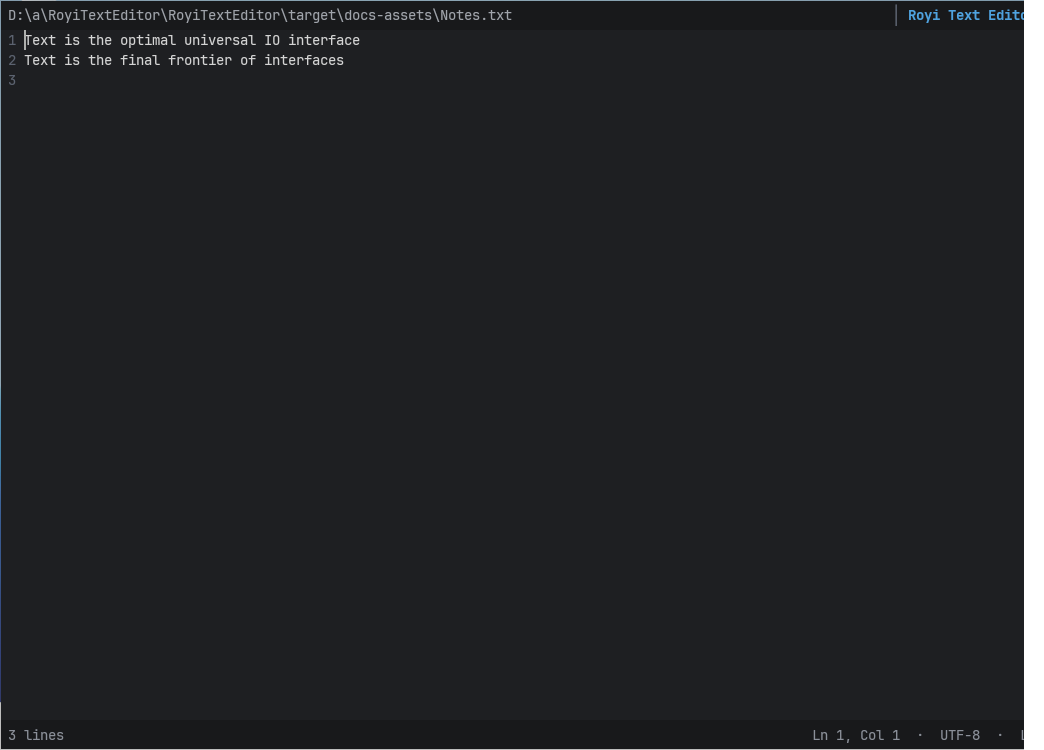
- Minimalistic and focused UI: the whole window is dedicated to text.
- Performance: a file opens in about 14 ms; huge files stay responsive.
- Keyboard oriented workflow, compatible with VS Code keys.
- Safety: atomic saving with a verified backup; external changes are detected.
Installation
- Open the latest release.
- Download
RoyiTextEditor-<version>-windows-x86_64.zip. - Extract the ZIP file to a folder of your choice.
- Run
RoyiTextEditor.exefrom the extracted folder.
Tip
RoyiTextEditor is portable. Keep the extracted files together and move the folder whenever needed.
Requirements: Windows 11, x64 CPU with AVX2.
Usage
RoyiTextEditor.exe [--read-only] [--syntax <id>] [--spelling <engine>] [file]
| Option | Effect |
|---|---|
--read-only | Open files without allowing edits |
--syntax <id> | Highlighting language, e.g. json (ids); none or off disables it |
--spelling <engine> | Spelling off, or on with builtin, hunspell or windows |
New files are created only from the command line: a path that does not exist opens an empty document and the first save creates it.
Unsaved changes show ● in the title strip. A file with the Windows
Read-only attribute is not saved: the ● turns orange and the status line
asks to clear the attribute and save again; the editor never changes
attributes. A file whose lines end with a lone CR is shown as one line, and
the status line says so. Files and Saving describes
these and the other unusual cases.
One File per Session
Each window is a session that edits one file. It never starts, closes or talks to another session. This keeps the editor simple and fast, and fits its main use: opening a file from a file manager.
- Empty state. Started without a file, or after Ctrl+W,
the window shows
Drop a file here to open it. Nothing can be edited; the Command Palette, About, Keyboard Shortcuts and zoom still work. - Drag and drop. Drop a file on the window to open it. It replaces the current file only when that file has no unsaved changes; otherwise the status line asks you to save or close it first. Only the first of several dropped files opens; folders are refused.
- Close and quit. Ctrl+W closes the file and keeps the window; Alt+F4 quits. Both ask first about unsaved changes.
Note
Windows does not deliver drops from Explorer to an editor running as administrator.
Keys
| Keys | Action |
|---|---|
| Ctrl+Left / Ctrl+Right | Move by word |
| PgUp / PgDn | Move by page |
| Home / End | First non-blank character / line end |
| Ctrl+Home / Ctrl+End | Start / end of file |
| Shift with any move | Extend the selection |
| Ctrl+Z, Ctrl+Y | Undo, redo |
| Ctrl+C / X / V | Copy / cut / paste (whole line without a selection) |
| Ctrl+S | Save |
| Ctrl+= / Ctrl+- / Ctrl+0 | Zoom in / out / reset |
| Ctrl+W | Close the file (back to the empty state) |
| Alt+F4, Ctrl+Shift+W | Quit; unsaved changes ask first |
| Ctrl+Shift+P, F1 | Command Palette |
| Ctrl+P | Recent and favorite commands |
| Ctrl+F / Ctrl+H | Find / replace |
| Ctrl+D, Ctrl+Shift+L | Add next occurrence, select all occurrences |
| Ctrl+Alt+Up / Down | Add a cursor above / below |
| Alt+click, Shift+Alt+drag | Add a cursor, column selection |
| Ctrl+K M | Change Language Mode |
| Ctrl+/, Shift+Alt+A | Toggle line / block comment |
| Ctrl+Shift+O | Go to a symbol |
All keys, including search options and replace, are listed in Keyboard Shortcuts.
Search
Ctrl+F opens the search box, seeded with the selection or the word at the caret. Three modes: Text (default), Glob (Alt+G) and RegEx (Alt+R), with Match Case, Whole Word and Find in Selection. Large files are searched on a background thread: the count streams in and the editor keeps responding. Ctrl+Alt+Enter replaces all matches in one undo step.
Syntax Highlighting
Code is highlighted with built-in tree-sitter grammars for Bash, Batch, C, C#, C++,
CSS, Go, HTML, INI, Java, JavaScript, JSON, Julia, Lua, Markdown, MATLAB, Octave,
PowerShell, Python, Rust, SQL, TOML, TypeScript (and TSX), XML and YAML. The
language follows the file name or a #! line and is shown on the status line;
Ctrl+K M changes it. The window opens with
plain text and the highlights follow within milliseconds; large files are
highlighted around the view first. Markdown also highlights code fences, front
matter and HTML blocks, and HTML its scripts and styles.
Windows Batch files (.bat and .cmd) use Batch highlighting automatically.
Use --syntax batch or select Batch in Change Language Mode to override it.
INI files (.ini, .cfg, .inf, .editorconfig, .gitconfig,
.gitmodules) highlight sections, keys and comments.
Code-aware editing: comments (Ctrl+/, Shift+Alt+A), auto-closing brackets and quotes, indentation after an opening bracket, the matching bracket (Ctrl+Shift+\), Expand and Shrink Selection (Shift+Alt+Right / Left) and Go to Symbol (Ctrl+Shift+O).
Spelling
Spelling is off by default; turn it on with spelling.enabled: true,
--spelling builtin or View: Toggle Spelling. US English words of plain
text and Markdown prose get a blue wavy underline when misspelled (Markdown
code, links, HTML and front matter are skipped; code files are not
checked). With the caret on one, the status line shows
Spelling: recieve (Ctrl+.).
- Ctrl+. lists suggestions first, then Add to Dictionary, Ignore and Next/Previous Misspelling; Ctrl+., Enter fixes the word in one undo step.
- F8 / Shift+F8 select the next / previous misspelled word, wrapping at the end of the file.
- Engines (
spelling.engine):builtin(a word list in the executable, the default),hunspell(the shippedDictionaries/en_USfiles, or the pair named byspelling.hunspell) andwindows(the Windows spell checker for US English). An engine that cannot start is reported and the built-in one is used. - Added words are kept in
UserSettings/Spelling/en_US.txtfor all engines; ignored words last for the session. - Markdown is checked while syntax highlighting is on; with
--syntax nonea Markdown file is checked as plain text.
Details: Spelling.
Command Palette
Every command is in the palette, grouped in families: Application:, File:,
Edit:, Selection:, Search:, Go:, Spelling: and View:. Type any part of a name (for example
fsave), choose with Up / Down, run with
Enter or a click, close with Esc.
- Click the star of a command, or press Ctrl+Space, to add or remove it from the favorites.
- Ctrl+P lists the last commands run from the palette, then the favorites.
Application: Keyboard Shortcutslists all keys;Application: Aboutshows the version and links.View: Toggle Syntax Highlightingturns highlighting off or on.View: Toggle Spellingturns spelling off or on for the session.
Favorites and recent commands are kept in UserSettings/Palette.json beside
the executable.
Configuration
An optional RoyiTextEditor.yaml beside the executable is read at startup.
The editor never writes it. Problems are shown on the status line and invalid
values keep their defaults.
palette:
  recentCount: 3          # recent commands listed by Ctrl+P, 0 to 20 (0: none)
editor:
  multiCursorLimit: 10000 # most selections, 1 to 1,000,000; more is refused
search:
  replaceAllMaxMiB: 512   # memory for one Replace All [MiB], 1 to 4096; more is refused
syntax:
  maxFileMiB: 32          # larger files are not highlighted, 1 to 1024
  injections: true        # embedded languages (Markdown fences, HTML scripts and styles)
spelling:
  enabled: false          # mark misspelled words (plain text, Markdown prose)
  engine: builtin         # builtin, hunspell or windows; a failing engine falls back to builtin
  hunspell: Dictionaries/en_US  # .aff/.dic base, relative to the executable
Every setting, its values and remarks: Configuration.
Files and Saving
How the editor opens and saves files, and what it does in the unusual cases.
Saving
Ctrl+S writes the text to a temporary file next to the original, then
replaces the original in one step and checks the result. A failed save
never leaves the file half written.
-
Unsaved changes show
●in the title strip. -
Changed by another program (an agent, a formatter,
git checkout): the editor notices it at once, also while you edit, and the status line asks<name> changed on disk. R: Reload S: Save Current. Only these two keys answer.Rshows the disk version. Unsaved changes and the undo history are dropped; the caret and the scroll position stay.Ssaves your text over the disk version.
Saving checks again: if the file changed since the editor last loaded or saved it, the same question appears and nothing is written. The editor’s own saves never ask. On some network shares a change is noticed only when saving.
-
Deleted by another program: the status line says so; the next save creates the file again.
-
Changed during the save: the other program’s version is kept next to the file, and the status line names it.
-
New file: a path from the command line that does not exist opens an empty document (
New fileon the status line); the first save creates it. If a file appears there meanwhile, the editor asks before overwriting it. -
Access denied or in use: nothing is changed, no temporary file is left, and the status line names the cause.
Read-Only Files
A file with the Windows Read-only attribute opens for editing, but it is
not saved. Ctrl+S writes nothing; the unsaved dot turns orange and the
status line asks to clear the attribute:
Clear the attribute (Explorer: Properties, uncheck Read-only), then
press Ctrl+S again. The editor never changes file attributes itself. The
attribute is checked only when saving, so opening a file stays fast.
Quitting with changes asks <name> is read-only. Save changes?.
To open a file without allowing edits, start the editor with
--read-only; the status line then shows RO: read-only.
Text Encoding and Line Breaks
| File | What happens |
|---|---|
| UTF-8, with or without BOM | Edited and saved as it was |
| UTF-16 with a BOM | Edited as text, saved as UTF-16 |
| UTF-16 without a BOM | Read as UTF-8: the zero bytes show as ␀ |
| Malformed UTF-16 | Read-only, never saved (Malformed UTF-16, read-only) |
| Invalid UTF-8 bytes | Shown as �, saved unchanged |
| LF or CRLF line breaks | New lines use the style most lines have (CRLF on a tie or none) |
| Line breaks with a lone CR (classic Mac) | Shown as one line, each CR as ␍; the status line says so |
Large Files and Long Lines
- Loading: a large file shows its beginning at once and the status line
shows
Loading N%. It can be read, but not edited, until it is loaded. - Long lines: lines longer than 64 KiB are drawn to their end. Past
64 KiB every byte takes one column (exact for ASCII), and the status line
shows
Col ~N. - Highlighting: files above
syntax.maxFileMiB(32 MiB) are plain text. See Configuration.
Keyboard Shortcuts
Shortcuts use the Windows key names shown below. Modifier keys must match the
binding exactly. For example, Ctrl+Shift+S is not Save.
| Keys | Action |
|---|---|
Left / Right; Ctrl+Left / Ctrl+Right | Move by character; move by word |
Up / Down; PgUp / PgDn | Move by line; move by page |
Home; End | Move to first non-blank, then line start; move to line end |
Ctrl+Home; Ctrl+End | Move to start; move to end of file |
Shift + any movement key; Shift+click | Extend the selection |
Ctrl+A; Esc | Select all; collapse selections |
| Double-click; triple-click | Select a word; select a line |
Backspace / Delete; Ctrl+Backspace / Ctrl+Delete | Delete a character; delete a word |
Enter | Insert a line break and keep indentation |
Tab; Shift+Tab | Insert indentation; indent or outdent selected lines |
Ctrl+]; Ctrl+[ | Indent; outdent the touched lines (also for a caret) |
Alt+Up / Alt+Down | Move the touched lines up / down |
Shift+Alt+Up / Shift+Alt+Down | Copy the touched lines up / down |
Ctrl+Shift+K | Delete the touched lines |
Ctrl+Enter; Ctrl+Shift+Enter | Insert a line below; above |
Ctrl+G | Go to line: N, N:C or N,C, -N from the end (Esc restores) |
Insert | Toggle overtype mode |
Ctrl+Z; Ctrl+Y / Ctrl+Shift+Z | Undo; redo |
Ctrl+C / Ctrl+X / Ctrl+V | Copy; cut; paste. Copy or cut the current line when nothing is selected. |
Ctrl+S | Save |
Ctrl+K P | Copy the full path of the file |
Ctrl+W; Ctrl+F4 | Close the file and return to the empty state (unsaved changes ask first) |
Alt+F4; Ctrl+Shift+W | Quit the application (unsaved changes ask first) |
Ctrl+Shift+P; F1 | Open the Command Palette |
Ctrl+P | Show recent and favorite commands |
Ctrl+Space (palette) | Add or remove the selected command from favorites |
Up / Down / PgUp / PgDn (palette) | Move through palette entries |
Enter or click (palette); Esc | Run the selected command; close the palette |
Wheel; Ctrl+Up / Ctrl+Down | Scroll vertically |
Alt+PgUp / Alt+PgDn | Scroll a page; the caret stays |
| Drag the slider; press the strip at the right edge | Scroll; jump to that place |
Shift+wheel | Scroll horizontally |
Ctrl+= / Ctrl+Shift+= / Ctrl+Numpad+; Ctrl+- / Ctrl+Numpad-; Ctrl+0 | Zoom in; zoom out; reset zoom |
Ctrl+wheel | Zoom in or out |
F11 | Toggle full screen (the status line stays) |
Ctrl+K Ctrl+S | Show the keyboard shortcuts |
Mouse clicks place the caret. Shift+click extends the current selection.
Commands without a shortcut are available by name in the Command Palette, for
example File: Copy File Name, which copies the file name.
Search and Replace
| Keys | Action |
|---|---|
Ctrl+F; Ctrl+H | Open the search box; open it with the replace field |
Enter / Shift+Enter; F3 / Shift+F3 | Next / previous match |
Alt+Enter | Select all matches |
Alt+C; Alt+W | Toggle Match Case; toggle Whole Word |
Alt+G; Alt+R | Toggle Glob; toggle RegEx. Both off is Text. |
Alt+L | Toggle Find in Selection |
Enter or Ctrl+Shift+1 (replace field) | Replace the current match and go to the next |
Ctrl+Alt+Enter | Replace all matches in one undo step |
Alt+P | Toggle Preserve Case |
Esc | Close the search box |
Glob: ? matches one character; * matches the shortest text within a line,
and a trailing * matches the rest of the line. Replacements use the VS Code
syntax: $1, $<name>, $0, $$, \n, \t, \u, \l, \U and \L.
Multiple Cursors
| Keys | Action |
|---|---|
Ctrl+D; Ctrl+K Ctrl+D | Add the next occurrence; move the last selection to it |
Ctrl+Shift+L; Ctrl+F2 | Select all occurrences |
Ctrl+Alt+Up / Ctrl+Alt+Down | Add a cursor above / below |
Shift+Alt+I | Add cursors to the ends of the selected lines |
Ctrl+L | Select the line, then extend by lines |
Ctrl+U | Undo the last cursor operation |
Alt+click | Add or remove a cursor |
Shift+Alt+drag; middle-drag | Column selection |
Ctrl+Shift+Alt + arrows / PgUp / PgDn | Column selection by keys |
At most editor.multiCursorLimit selections (10,000 by default) are created;
larger requests are refused with a message on the status line.
Code
| Keys | Action |
|---|---|
Ctrl+K M | Change Language Mode (or Plain Text) |
Ctrl+/ | Toggle Line Comment (block comments per line in CSS, HTML, XML, Markdown) |
Ctrl+K Ctrl+C; Ctrl+K Ctrl+U | Add Line Comment (also to commented lines); Remove Line Comment |
Shift+Alt+A | Toggle Block Comment |
Ctrl+Shift+\ | Go to the matching bracket |
Shift+Alt+Right; Shift+Alt+Left | Expand the selection to the enclosing syntax node; shrink it back |
Ctrl+Shift+O | Go to a symbol of the file |
( [ { " ' (language-dependent) | Insert the closing character; with a selection, wrap it |
Backspace between an empty pair | Delete both characters |
Enter after (, [, { (and : in Python and YAML) | New line indented one level |
Spelling
With spelling on (View: Toggle Spelling, spelling.enabled):
| Keys | Action |
|---|---|
Ctrl+. | Suggestions for the misspelled word, then Add to Dictionary and Ignore |
Enter (Spelling palette) | Replace the word with the selected suggestion (one undo step) |
F8; Shift+F8 | Select the next; previous misspelled word (wraps) |
Search and Selections
Find text as you type, narrow the search, then replace matches or edit them together.
Find
Press Ctrl+F. Selected text becomes the query; with no selection, the word
at the caret is used. Press Enter / Shift+Enter to move between matches;
search wraps at the document ends. Press Esc to close the panel.
| Panel control | Use it for | Shortcut |
|---|---|---|
Aa | Match letter case | Alt+C |
ab | Match whole words | Alt+W |
*? | Glob patterns: * within a line, ? for one character | Alt+G |
.* | Regular expressions | Alt+R |
| Selection icon | Search only inside the current selection. Select text first. | Alt+L |
Rest the pointer on a control of the panel to see its name and shortcut.
- Whole words keep accents (combining marks) with their word, as in VS Code.
- Regular expressions use Rust syntax. With look-around or
backreferences, write line breaks as
\n:.with(?s)or\sdoes not reach the next line. Such a pattern that backtracks heavily on a very long line keeps the search busy until it finishes;Escdoes not interrupt it.
Replace and Select
Press Ctrl+H, or click the arrow at the left of the panel, to show Replace. Enter in the Replace field replaces the
current match and moves to the next. Ctrl+Alt+Enter replaces all matches in
one undo step; Alt+P toggles case-preserving replacement.
| Shortcut | Result |
|---|---|
F3 / Shift+F3 | Next / previous match |
Alt+Enter | Select every match as a separate selection |
Ctrl+D | Add the next occurrence of the selected text |
Ctrl+Shift+L | Select all occurrences of the selected text |
Ctrl+Alt+Up / Ctrl+Alt+Down | Add a caret on the line above / below |
Syntax Highlighting
Code is detected from its file name or #! line. It opens immediately as
plain text; syntax colors follow as parsing completes.
Press Ctrl+K M to choose a language or Plain Text. The picker filters as
you type. To toggle highlighting for the current document, open the Command
Palette with Ctrl+Shift+P and run View: Toggle Syntax Highlighting.
Supported modes: Bash, Batch, C, C#, C++, CSS, Go, HTML, INI, Java, JavaScript, JSON, Julia, Lua, Markdown, MATLAB, Octave, PowerShell, Python, Rust, SQL, TOML, TSX, TypeScript, XML, and YAML.
Files larger than 32 MiB are plain text by default. Set syntax.maxFileMiB
from 1 to 1024 in RoyiTextEditor.yaml to change the limit. Markdown and HTML
also highlight embedded code by default; set syntax.injections: false to
disable it. Launch with --syntax none to start with highlighting off.
Spelling
Spelling marks misspelled US English words in plain text files and in the prose of Markdown files. It is off by default.
Turning It On
- In
RoyiTextEditor.yaml:spelling.enabled: true(see Configuration). - For one session: start with
--spelling builtin(orhunspell,windows);--spelling offturns it off. - While editing: run View: Toggle Spelling in the Command Palette.
Spelling starts after the window is shown and runs on its own thread, so it never delays opening a file. With spelling off, nothing spelling-related runs.
What Is Checked
- Files: plain text and Markdown. Code files are not checked.
- Rows: the visible rows; marks follow as you scroll.
- Markdown: prose only. Code spans, fenced and indented code blocks,
link destinations, autolinks, HTML and front matter are skipped. The
structure comes from the syntax thread, so Markdown is checked while
syntax highlighting is on; with
--syntax nonea Markdown file is checked as plain text. - Words: letters with inner apostrophes (
don't); a trailing'sis dropped. Skipped: words with digits or_, all-capital words (acronyms), words longer than 64 bytes, URLs, e-mail addresses and paths. - Case: a word is correct when it, its lowercase form or (for a capitalized dictionary word) its capitalized form is in the dictionary.
A misspelled word gets a blue wavy underline. With the caret on one, the
status line shows Spelling: recieve (Ctrl+.), and Ctrl+. opens the
Spelling palette:
In the picture the caret is on Recieve: it has the wavy underline, the
status line names it, and the palette lists its suggestions, a separator
and the spelling commands.
Fixing Words
| Keys | Action |
|---|---|
Ctrl+. | Suggestions for the word at the caret, then the commands below |
Enter (Spelling palette) | Replace the word with the selected suggestion (one undo step) |
F8; Shift+F8 | Select the next; previous misspelled word (wraps at the ends) |
The Spelling palette lists up to 8 suggestions, closest first, then a separator and the commands.
It works like the Command Palette: Up / Down move (and wrap around),
Enter or a click runs the selected row, typing filters the rows and
Esc closes it. The first suggestion is selected, so Ctrl+. then
Enter fixes a word; Ctrl+Z undoes it. While the suggestions are being
collected the first row says so and Enter waits.
- Add to Dictionary: the word is correct from now on, in every session and for every engine.
- Ignore: the word is correct in this window until it closes (or spelling is toggled off).
- Next Misspelling and Previous Misspelling (
F8,Shift+F8).
Away from a misspelled word, Ctrl+. lists only Next and Previous. F8
in a long file shows its progress on the status line; it reports
No other misspellings when the word at the caret is the only one, and
No misspellings found when there is none.
Commands
All spelling actions are also in the Command Palette (Ctrl+Shift+P), in
the Spelling: family; type spell to list them.
| Command | Key | Action |
|---|---|---|
Spelling: Show Suggestions | Ctrl+. | The Spelling palette for the word at the caret |
Spelling: Next Misspelling | F8 | Select the next misspelled word |
Spelling: Previous Misspelling | Shift+F8 | Select the previous misspelled word |
Spelling: Add to Dictionary | None | Add the word at the caret to the user dictionary |
Spelling: Ignore Word | None | Ignore the word at the caret in this window |
View: Toggle Spelling | None | Turn spelling off or on for this window |
The keys are also listed by Application: Keyboard Shortcuts
(Ctrl+K Ctrl+S) and on the Keyboard Shortcuts
page.
Engines
Set by spelling.engine. All engines see the same words and the same added
and ignored words; their verdicts can differ.
| Engine | Dictionary |
|---|---|
builtin | US English word list in the executable (default) |
hunspell | Dictionaries/en_US.aff and .dic beside the executable |
windows | The Windows spell checker, when US English is installed in Windows |
- The shipped Hunspell dictionary is the SCOWL-based
en_USrelease; its license isDictionaries/README_en_US.txt.spelling.hunspellcan name another.aff/.dicpair. - The built-in list is made from the same dictionary when the editor is built.
- An engine that cannot start (missing files, US English not installed) is
reported once on the status line and
builtinis used. - The Windows engine never writes to the Windows dictionary; added and ignored words stay in the editor.
The User Dictionary
Added words are kept in UserSettings/Spelling/en_US.txt beside the
executable: one word per line, at most 64 KiB and 10,000 words. You can
edit it with any editor; it is read when spelling starts. Adding a word
reads the file, merges the new word and writes it, so words added by
another session are kept. A file that cannot be read or is not a valid word
list is never overwritten; added words then last for the session, with a
notice.
Configuration
Settings are read from an optional RoyiTextEditor.yaml beside the
executable.
- It is read once at startup; restart the editor after changing it.
- The editor never writes it.
- A missing file gives the defaults.
- Problems are shown on the status line:
- An invalid setting (an unknown key, a value out of range) keeps its default; the other settings still apply.
- Invalid YAML (a syntax error, an anchor, tag or alias) ignores the whole file: every setting keeps its default.
- Plain YAML only: maps, lists and values, one document, no anchors, tags or aliases.
A complete file with the defaults:
# RoyiTextEditor.yaml: every setting is optional; delete what you don't change.

palette:
  # Commands run from the palette that Ctrl+P lists first, 0 to 20.
  recentCount: 3

editor:
  # Most selections Select All Matches, Select All Occurrences and the
  # cursor commands may create, 1 to 1,000,000. Larger requests are refused.
  multiCursorLimit: 10000

search:
  # Memory one Replace All may use, in MiB, 1 to 4096. A larger replacement
  # is refused before it starts.
  replaceAllMaxMiB: 512

syntax:
  # Files larger than this many MiB open as plain text, 1 to 1024.
  # Highlighting a large file costs memory: about 30 to 130 bytes per byte.
  maxFileMiB: 32
  # Highlight code embedded in other languages: fenced code blocks and front
  # matter in Markdown, <script> and <style> in HTML.
  injections: true

spelling:
  # Mark misspelled words of plain text and Markdown prose.
  enabled: false
  # builtin: a word list in the executable.
  # hunspell: the .aff / .dic pair named by spelling.hunspell.
  # windows: the Windows spell checker (US English must be installed).
  engine: builtin
  # Base path of the Hunspell files, relative to the executable
  # (Dictionaries/en_US means Dictionaries/en_US.aff and en_US.dic).
  hunspell: Dictionaries/en_US
Palette
| Key | Default | Values | Remarks |
|---|---|---|---|
recentCount | 3 | 0 to 20 | Recent commands at the top of Ctrl+P, above the favorites; 0 hides them |
Editor
| Key | Default | Values | Remarks |
|---|---|---|---|
multiCursorLimit | 10000 | 1 to 1,000,000 | Most selections at once; a command that would make more is refused with a notice |
Search
| Key | Default | Values | Remarks |
|---|---|---|---|
replaceAllMaxMiB | 512 | 1 to 4096 | Memory of one Replace All; a larger one is refused before any change |
Syntax
| Key | Default | Values | Remarks |
|---|---|---|---|
maxFileMiB | 32 | 1 to 1024 | Larger files open as plain text, also when an edit grows them past it |
injections | true | true/false | Embedded languages (Markdown fences and front matter, HTML scripts, styles) |
--syntax none turns highlighting off for a session; see
Syntax Highlighting.
Spelling
| Key | Default | Values | Remarks |
|---|---|---|---|
enabled | false | true/false | Spelling at startup; View: Toggle Spelling changes it for the session |
engine | builtin | builtin, hunspell, windows | An engine that cannot start falls back to builtin |
hunspell | Dictionaries/en_US | A relative path | Base of the .aff and .dic files, from the executable’s folder |
--spelling off|builtin|hunspell|windows overrides enabled and engine
for a session; see Spelling.
Files Beside the Executable
| Path | Written by the editor | Contents |
|---|---|---|
RoyiTextEditor.yaml | Never | These settings |
UserSettings/Palette.json | Yes | Favorite and recent commands |
UserSettings/Spelling/en_US.txt | Yes | Words added by Add to Dictionary |
Dictionaries/ | Never | The shipped Hunspell dictionary and license |
CLI Commands
Command-Line Options
RoyiTextEditor.exe [--read-only] [--syntax <id>] [--spelling <engine>] [--trace-startup] [--exit-after-first-frame | --exit-after-load | --exit-after-highlight] [--bench-setup <sequence>] [--bench-keys <sequence>] [--bench-runs <count>] [--bench-select <start>..<end>] [--bench-handled] [--bench-paced] [file]
| Option | Purpose |
|---|---|
[file] | Open the specified file. A missing path opens an empty document that can be saved to that path; a folder is refused. Omit it to start in the empty state (drop a file on the window to open it). |
--read-only | Open every file of the session without allowing edits. |
--syntax <id> | Highlight the command-line file as language <id> (table below; ids and aliases, any case) instead of the language of its name; dropped files follow their names. none or off disables highlighting. An unknown id keeps the detected language and shows a notice. |
--spelling <engine> | Spelling for the session: off, or on with the builtin, hunspell or windows engine (overrides spelling.enabled and spelling.engine). An unknown value is reported and ignored. |
--trace-startup | Print startup timing and memory measurements to standard output. |
--exit-after-first-frame | Exit after drawing the first frame. Intended for startup measurements. |
--exit-after-load | Exit after the file finishes loading. Intended for performance measurements. |
--exit-after-highlight | Like --exit-after-load; a highlighted file also waits until it is highlighted from a parse of the whole file (trace stage fully_highlighted), and with spelling on until its first complete marks (spelling_marks). Intended for performance measurements. |
--bench-setup <sequence> | Run an untimed key sequence once before the scripted repetitions, for example "Ctrl+F". Used with --bench-keys. |
--bench-select <start>..<end> | Select these bytes once the file is loaded, before the setup. Used with --bench-keys. |
--bench-handled | Time steps that draw nothing (copies) until they are handled. Used with --bench-keys. |
--bench-paced | Send one step per display refresh, like a held key; with highlighting, each step first waits (at most 1 s) for its highlighted frame. Used with --bench-keys. |
--bench-keys <sequence> | Run a scripted sequence after loading, for example "Ctrl+Shift+P,Escape". Quoted text such as 'abc' is typed one character at a time; Down*40 repeats a key. Developer benchmark option. |
--bench-runs <count> | Set the number of scripted repetitions. Used with --bench-keys. |
Examples:
RoyiTextEditor.exe --read-only .\logs\today.log
RoyiTextEditor.exe --syntax json .\notebook.ipynb
RoyiTextEditor.exe --trace-startup --exit-after-first-frame .\src\main.rs
The first example opens a log read-only, the second highlights a notebook as
JSON (.ipynb is not detected as JSON), the third measures startup.
Syntax IDs
| ID | Language | Aliases |
|---|---|---|
bash | Bash | sh, shell, shellscript, zsh |
batch | Batch | bat, cmd, dosbatch |
c | C | |
csharp | C# | c# |
cpp | C++ | c++, cxx, cc |
css | CSS | |
go | Go | golang |
html | HTML | htm, xhtml |
ini | INI | dosini |
java | Java | |
javascript | JavaScript | js, jsx, node |
json | JSON | jsonc, json5 |
julia | Julia | jl |
lua | Lua | |
markdown | Markdown | md |
matlab | MATLAB | |
octave | Octave | |
powershell | PowerShell | ps1, pwsh, ps |
python | Python | py, python3 |
rust | Rust | rs |
sql | SQL | |
toml | TOML | |
typescript | TypeScript | ts |
tsx | TypeScript JSX | typescriptreact |
xml | XML | |
yaml | YAML | yml |
The same names (and file extensions) select the language of Markdown code fences.
Windows Batch files are detected by their .bat or .cmd extension; INI
files by .ini, .cfg or .inf, and the names .editorconfig, .gitconfig
and .gitmodules.
Developer Guide
RoyiTextEditor is a Windows-first Rust application. Its core is split into small crates so text storage, editing, layout, rendering, and operating-system integration have clear owners.
Architecture
flowchart LR
    Win[Win32 input and window] --> Platform[rte_platform]
    Platform -->|events| App[rte_app: Editor and Document]
    App -->|edit commands| Edit[rte_edit: selections and history]
    Edit -->|transactions| Text[rte_text: persistent text tree]
    Text -->|snapshots| App
    App -->|snapshot and view state| View[rte_view: layout and display list]
    View -->|display list| Render[rte_render: CPU rasterizer]
    Render -->|pixels| Platform
    App -->|snapshots and edits| Syntax[rte_syntax on the syntax thread]
    Syntax -->|trees and spans| App
    App -->|queries| Search[rte_search on the search thread]
    Search -->|matches and counts| App
    App -->|snapshots and ranges| Spell[rte_spell on the spelling thread]
    Spell -->|misspelled words| App
    Workers[Loader and save threads] -->|results and wake events| App
The window thread owns the editor, document, selections, popups, and frame construction. Background threads (loading, saving, search, syntax, spelling) receive immutable snapshots, return results through channels and wake the window; they do not mutate UI state directly. The spelling thread asks the syntax thread which Markdown text is not prose.
| Crate | Responsibility |
|---|---|
rte_text | Persistent piece tree, immutable snapshots, line queries, transactions, position mapping, and UTF-8/UTF-16 conversion. |
rte_edit | Byte-offset selections, caret motion, editing commands (including comment, auto-closing and indentation edits), clipboard data, and undo history. |
rte_search | Literal, Glob and regular-expression search over snapshots, and replacements. |
rte_spell | Words of prose, the spelling front end (user words, ignored words, cache), the built-in word list (expanded at build time from the shipped Hunspell dictionary), the Hunspell engine (spellbook) and suggestions. |
rte_syntax | Language registry and detection, built-in tree-sitter grammars with trimmed queries (queries/, regenerated by cargo xtask syntax-queries), parsing sessions, highlight spans, injections, brackets, syntax-node selection, symbols, and the tree-sitter allocator. |
rte_view | Integer-cell layout, hit-test geometry, and display lists for text and popups. |
rte_render | CPU glyph rasterization, caches, clipping, and framebuffer drawing. |
rte_platform | Raw Win32 window, input events, DIB presentation, clipboard, file operations, and the Windows spell checker (COM loaded at run time). |
rte_app | Startup, command dispatch, document lifecycle, loading, saving, palette, search, syntax and spelling threads, and UI coordination. |
rte_assets | Bundled default font and build-time font acquisition. |
xtask | Startup and performance benchmarks, import checks, release packaging, and query generation. |
Recovery journals and external-change merging are not shipped features.
Data Flow
The loader builds immutable text snapshots off the UI thread. Editing commands produce transactions and updated snapshots; the application then rebuilds the visible display list and rasterizes it into the window buffer. Each edit is also sent to the syntax thread, which re-parses incrementally. Saving writes a temporary sibling file and uses the platform replacement path, with conflict checks and backup handling.
Workers should receive owned or immutable data. Keep window and view state on the UI thread, reject stale asynchronous results, and wake the window only when there is new work to present. These boundaries are also described in the architecture plan.
One File per Session
A session (process) handles one file at a time and never starts, closes or
contacts another session. editor/lifecycle.rs owns the transitions:
stateDiagram-v2
    [*] --> Empty: no file argument
    [*] --> Open: file argument
    Empty --> Pending: file dropped
    Open --> Pending: file dropped, no unsaved changes
    Pending --> Open: loader confirms a file
    Pending --> Empty: folder or missing (from the empty state)
    Pending --> Open: folder, or unsaved changes meanwhile (old file kept)
    Open --> Empty: Ctrl+W (after Save or Don't Save)
    Empty --> [*]: Alt+F4
    Open --> [*]: Alt+F4 (after Save or Don't Save)
- A dropped file loads while the current file stays; it replaces it only when its loader’s first answer is a file and the current file still has no unsaved changes.
- Replacing or closing a file resets every per-file state: the loader is stopped (it checks a stop flag between blocks and before publishing), the syntax thread is dropped (its trees are freed on that thread) and the search box is closed. Search generations only grow, and the count checkpoints holding the old text are freed.
- The empty state is the
no_fileedit lock: edits and saves are refused, and only the empty-state commands run (works_without_file). - Drops arrive as
WM_DROPFILES(theWS_EX_ACCEPTFILESwindow style);shell32is loaded on the first drop, so startup is unchanged.
Syntax Threads
Highlighting starts while the window is still being created. The work runs in parallel on short-lived threads: in the benchmarks, files of 10,000 lines of TypeScript, Python and C are fully highlighted 36, 43 and 70 ms after the process starts.
sequenceDiagram
    participant UI as UI thread
    participant Loader as Loader thread
    participant Query as Query thread
    participant Worker as Syntax worker
    participant Full as Whole-file parse thread
    UI->>Query: compile the highlight query of the file name's language
    UI->>Loader: read the file
    par Window
        UI->>UI: create the window, draw the first frame as plain text
    and Syntax
        Loader->>Worker: start with the complete text
        Worker->>Full: above 128 KiB, parse the whole file
        Worker->>Worker: parse the file, or above 128 KiB a 32 KiB window
        Query-->>Worker: compiled query
        Worker-->>UI: first trees, the next frame is highlighted
        Full-->>Worker: whole-file tree
        Worker-->>UI: whole-file trees, fully highlighted
    end
    UI->>Worker: edits, visible range, span and symbol requests
    Worker-->>UI: trees and spans
- The loader starts the syntax worker as soon as the text is read. The editor adopts that worker when the language and text match; otherwise it starts its own.
- The highlight query compiles on its own thread while the text parses; the first view waits for it.
- Files above 128 KiB parse a 32 KiB window around the view first. The whole file parses at the same time on its own thread; edits made meanwhile are applied to its tree when it arrives, and it is adopted before any further window parse.
- The UI thread never waits for these threads. It draws the visible rows from the latest trees within 1 ms per frame and asks the worker for the rest. Trees it replaces go back to the worker to be freed.
Memory Allocation
Tree-sitter allocates its parse trees through
mimalloc
(rte_syntax::install_allocator, an unsafe function called first in
main, before any tree-sitter object exists; a failed allocation aborts the
process). Parsing is 6-16%
faster than with the Windows heap, and Go to Symbol about 25% faster. The
rest of the application keeps the Windows heap: mimalloc there gave no
measurable gain and doubled the memory of small files.
Fast rendering with a higher memory footprint is the project owner’s
design choice: when the two conflict, speed wins, within explicit limits
such as syntax.maxFileMiB. The parallel
threads and mimalloc’s per-thread pages add 2-3 MiB to the peak memory of
small and 10,000-line files, and editing an 8 MiB file while it is still
being parsed can peak 13-20 MiB higher, because the whole-file parse no
longer pauses for the edits. In return highlighting is complete sooner, and
8 MiB files peak about 24 MiB lower. Startup memory is unchanged (5.1 MiB
for an empty file), and --syntax none restores the memory footprint of
0.3.0 (a 64 KiB JSON file peaks at 5.7 MiB instead of 10.7 MiB). The
design and measurements are recorded in
Done/SyntaxPerformance.md.
Build and Validation
The repository targets Windows x64 with the GNU Rust toolchain and
x86-64-v3 CPU features. windres is required to embed the application
manifest and icon. Missing font assets are fetched from pinned releases and
SHA-256 verified by the rte_assets build script.
Run focused tests for the crate being changed. Do not run the whole workspace suite or performance suite unless requested; see AGENTS.md.
| Task | Command |
|---|---|
| Run the editor | cargo run --release -p rte_app -- <file> |
| Test a crate | cargo test -p <crate> |
| Check formatting | cargo fmt --all --check |
| Run the documentation build | ./tools/Build-Docs.ps1 |
| Measure startup | cargo xtask bench-startup |
| Run the short performance report | cargo xtask bench-perf --short |
| Run selected performance tests | cargo xtask bench-perf --only L01,F01 |
| Package a release ZIP | cargo xtask package |
The workspace and shipped behavior are documented in Done/Architecture001.md, DEVELOPMENT.md, and AGENTS.md.
Performance
The editor is designed to show a first frame quickly while large files finish loading in the background. The figures below are medians from Performance Benchmark v1 for release 0.6.0.
Recorded Results
| Scenario | First paint | File read | Peak private memory | Key to frame |
|---|---|---|---|---|
| Empty file | 25.0 ms | — | 5.2 MiB | — |
| Python, 8 MiB | 24.5 ms | 9.0 ms | 393.3 MiB | — |
| Log file, 256 MiB | 27.5 ms | 93.1 ms | 267.2 MiB | — |
| Single-line text, 64 MiB | 25.6 ms | 26.6 ms | 72.2 MiB | — |
| Show Command Palette | — | — | — | 0.44 ms |
| Show favorites | — | — | — | 0.36 ms |
The machine was an AMD Ryzen 9 9950X with 94 GiB RAM, Windows 11 Pro for Workstations, and a 2560 × 1600 display at 59 Hz. The release build used a warm file cache. These values are specific to that setup and benchmark version.
First paint is the time from process start until the first frame is drawn to the back buffer. It is not the later DWM-composed display time. File read measures completion of background loading. Key to frame measures the time from a handled key to the frame being drawn. The palette result uses 30 repetitions after one warm-up; its p95 was 0.78 ms.
Reproduce
Run the short report from the repository root:
cargo xtask bench-perf --short
The complete procedure, fixtures, and recorded results are in
Performance.md.
The harness also provides cargo xtask bench-startup for the startup gate.
Crate-specific benchmarks are available with cargo bench -p rte_text,
cargo bench -p rte_edit, and cargo bench -p rte_render.
Code fixtures are highlighted. L09 also reports the time until the whole 8 MiB
Python file is highlighted (--exit-after-highlight, 799 ms); its peak memory
includes the syntax trees of the whole file. The scroll tests report the time
from a jump to its first highlighted frame.