Archives
RoyiFileManager works with archives as folders. It uses 7-Zip.
Supported extensions: .zip, .zipx, .jar, .xpi, .7z and .tar.
Large Archives
Browsing archives can be slower than browsing regular folders. For large archives, use Unpack archive from the Command Center, then browse the extracted folder.
Browse an Archive
Press Enter on an archive to open it.
Navigate inside it like any folder. Press Backspace at its root to return to the containing folder.
Pack Files
Select files, then press Alt+F5.
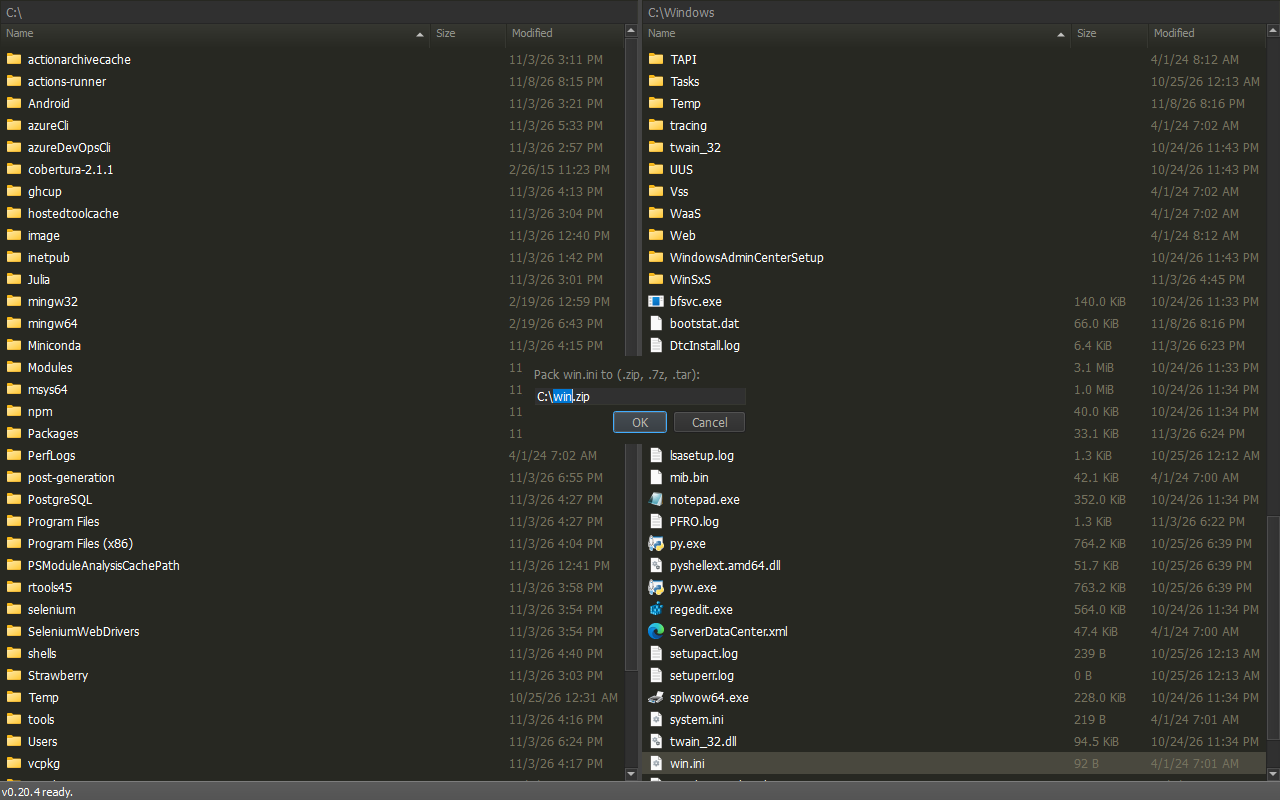
- Change the extension to
.7zor.tarto choose the format. - Packing into an existing archive asks before adding or updating files.
- The Command Center name is Pack to archive (.zip, .7z, .tar).
To pack into the current folder, run Pack here from the Command Center or file context menu. It uses the existing Pack operation with only the default destination changed. Selection and provider support are unchanged; the archive prompt still lets you change the filename, destination and format.
Unpack an Archive
Place the cursor on an archive, then run Unpack archive from the Command Center.
It works like Extract Here: Reports.zip in C:\Work creates C:\Work\Reports.
- The archive stays unchanged.
- An existing destination stops the operation. Nothing is merged or overwritten.
- Cancel removes unfinished output.
Copy and Move
Use F5 to copy into or out of an archive. Use F6 to move out of an archive or between two archives of the same format.
- Moving local files into archives is disabled for safety. Copy them, verify the archive contents, then delete originals explicitly.
- Moving between different archive formats is not supported. Extract and verify the files first, then copy them into the destination archive.
- Archives have no Recycle Bin. F8 (Delete) is refused inside them; use Delete permanently (Shift+Del) to remove archive entries.
- Extraction shows progress and can be canceled.
- Moving out of or between archives checks the copied files before removing them from the source. This takes extra time and temporary space.
- Avoid changing the archive or destination while an operation runs.
- There is no password prompt for encrypted archives.
From Explorer's Archive View
Windows Explorer opens .zip, .7z and .tar files as folders.
Copy items there and paste them into a pane, or drag them onto a pane:
In Explorer, inside Reports.zip |
In RoyiFileManager |
|---|---|
| Select items, press Ctrl+C | Press Ctrl+V in a pane |
| Drag items | Drop onto a pane or folder |
- The items are extracted with the usual copy prompt, progress and Cancel.
- They are always copied. Cut (Ctrl+X) and Shift do not change the archive.
- The archive type needs an entry in
archive_handlers(see Configuration). Otherwise nothing is copied and a message explains why.
See Archive usage. See Advanced Notes for local-copy and recovery cautions.