Tools
QuickView
Press Ctrl+Q.
QuickView previews the file under the cursor over the other pane. Both folder locations stay unchanged.
QuickView Or An External Program?
| Need | Use From The File Pane |
|---|---|
| Inspect supported files without launching another program | Ctrl+Q for QuickView |
| View a file in your chosen program | F3 for the configured viewer |
| Edit a file | F4 for the configured editor |
Press Tab to focus QuickView; Tab or Esc returns to the pane. Ctrl+Q closes it. Inside a text preview, F3 finds the next match instead of launching the external viewer. Configure F3/F4 through Text Editor and Viewer.
QuickView Availability
QuickView previews files on local drives and network shares, not inside archives or other virtual file systems.
QuickView for Images
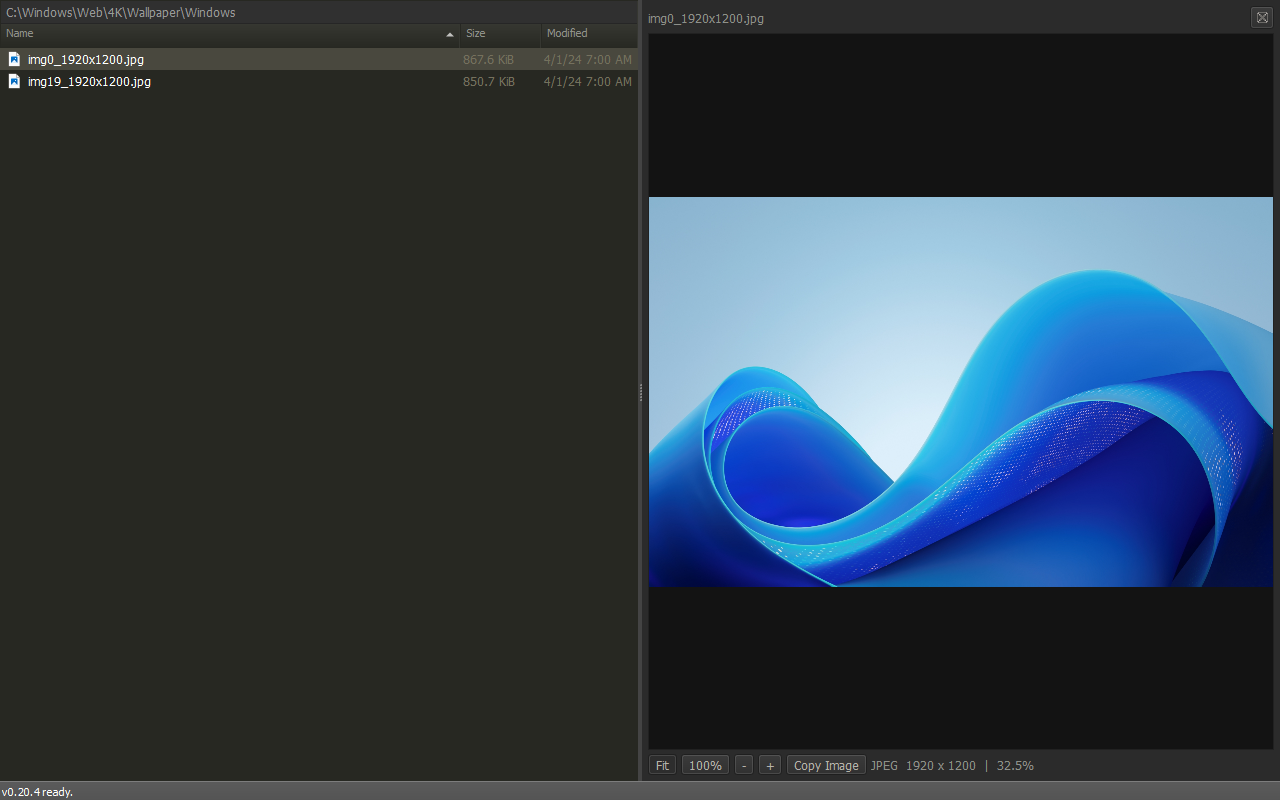
- View JPEG (
.jpg,.jpeg), PNG, BMP, GIF, ICO, TIFF (.tif,.tiff) and WebP images. - Fit, zoom and pan the image.
- Show it at 100% or copy its decoded pixels.
- Animated GIF, WebP and APNG (
.pngor.apng) images play when shown and follow the file's loop count. A Play/Pause button appears only for animations; Space toggles it. Animations above 16 MP per frame show a still frame. - Format availability depends on the bundled Qt codecs.
QuickView for PDF Files
- Read PDF files from page 1, fitted to the view.
- Scroll through all pages, or type a page number and press Enter.
- A bundled helper process renders the pages. No PDF reader is needed.
- Password-protected and damaged files show an error.
| Key | Action |
|---|---|
| F | Fit the page |
| W | Fit the width |
| + / - or Ctrl + wheel | Zoom from 25% to 400% |
| Arrows, Page Up / Page Down, Home / End | Scroll, or jump to the start or end |
| Tab or Esc | Return to the file pane |
Files are limited to 64 MiB and 2,000 pages. Text selection, search, forms and printing are not available.
QuickView for Text based Files
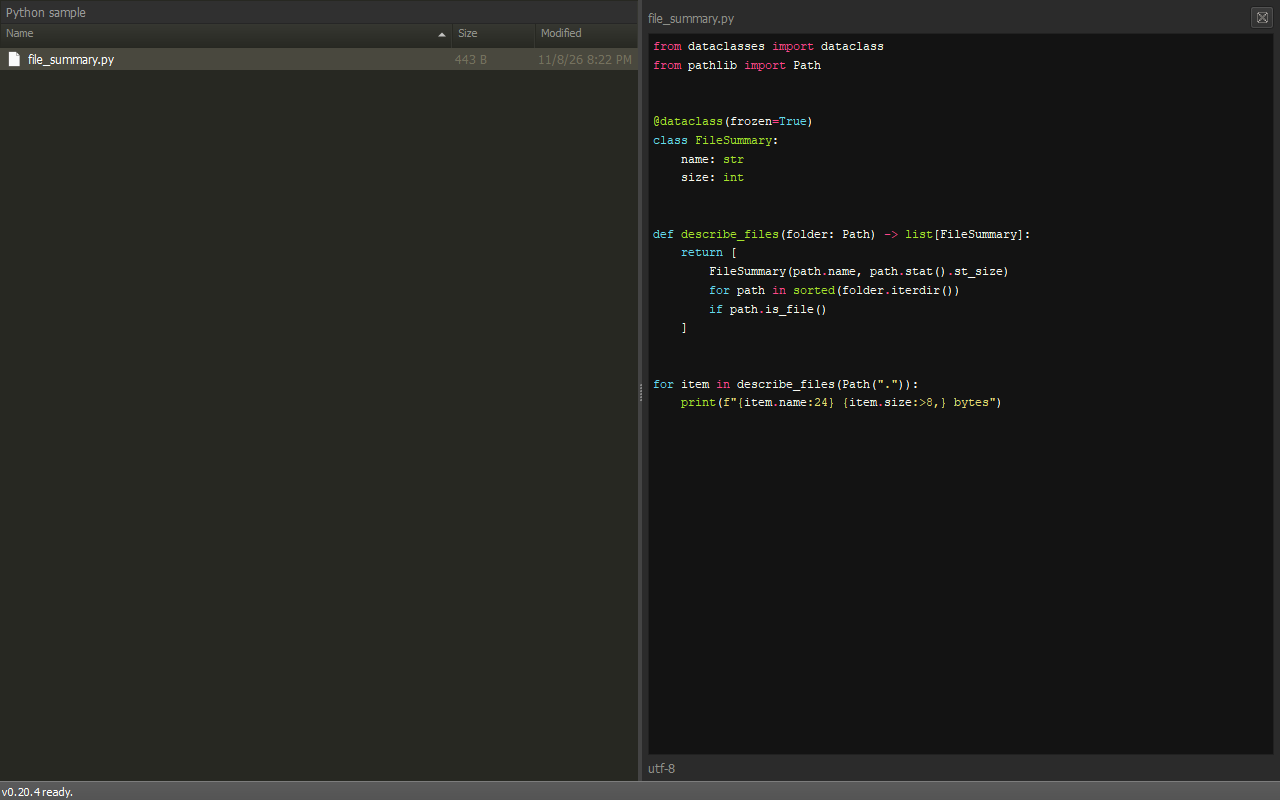
- Read plain text and syntax-highlighted source code.
- Switch Markdown between Rendered and Source modes.
- Select text, then press Ctrl+C or right-click and choose Copy.
- With the preview focused, press Ctrl+F to open Find, F3 for the next match or Shift+F3 for the previous match.
Text reads stop at 2 MiB, formatting stops at 512 KiB, with plain-text fallback. Markdown external resources are blocked.
QuickView for CSV and TSV Tables
.csv and .tsv files open as a read-only Table View.
Filtering and sorting always cover the whole file, not only the loaded rows.
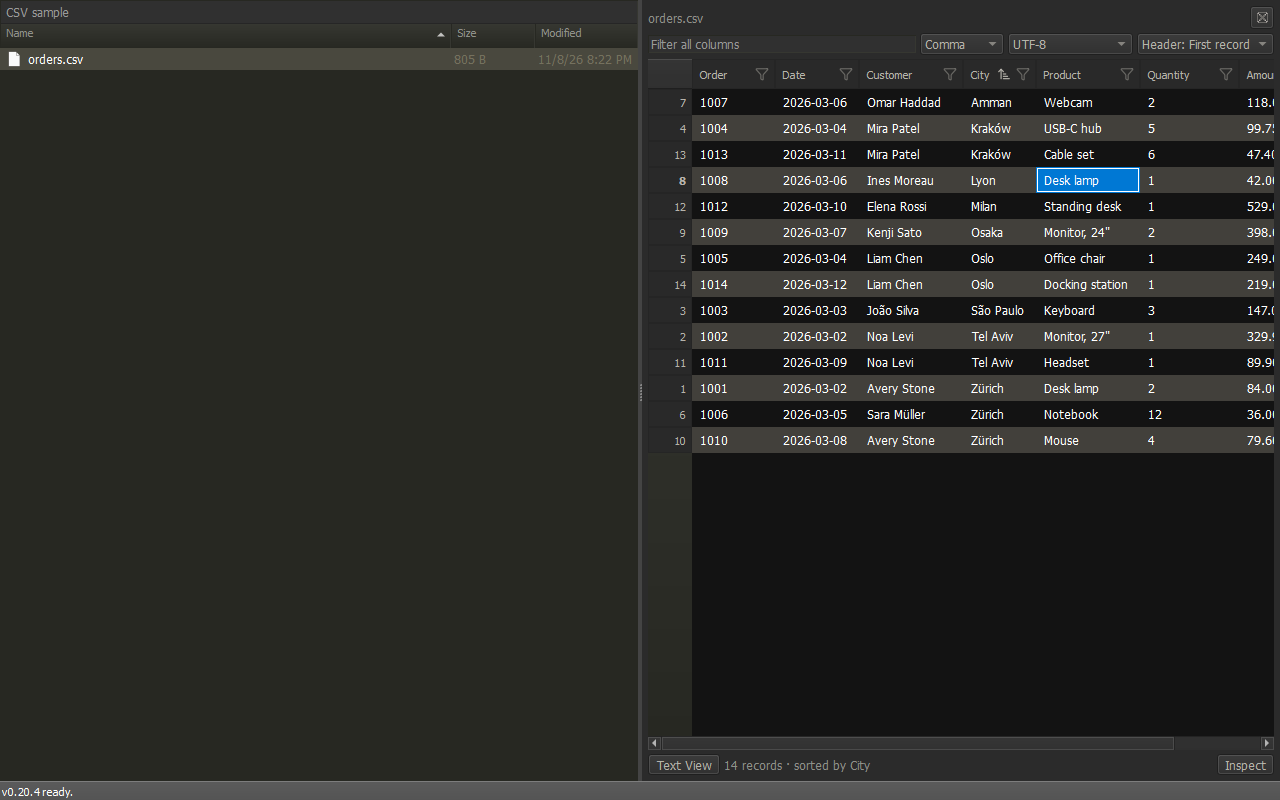
The top row holds the table controls:
| Control | Options | Effect |
|---|---|---|
| Filter all columns | Text | Keep records containing the text in any column, ignoring case. |
| Delimiter | Auto, Comma, Semicolon, Tab, Pipe | Field separator. Auto detects it; .tsv files use Tab. |
| Encoding | Auto, UTF-8, UTF-16 LE (BOM), Latin-1 | Text encoding. Auto follows the byte order mark, else UTF-8. |
| Header | Auto, First record, None | Use the first record as column names, or number the columns. |
| Retry | Load the file again with the selected options. |
After loading, the boxes show the detected values. Changing one reloads the file. Options apply to the current file only.
The bottom row shows the record count, filter and sort state, and:
- Text View: show the file as text. Only for files up to 2 MiB; Text View has a Table View button to return.
- Inspect: show the complete selected cell in a panel under the table. The panel follows the selection. Table cells are cut at 512 characters and show one line, Inspect shows the whole value with its line breaks.
Mouse and menus:
- Click a column header to sort ascending, descending, then back to file order.
- Click the header funnel for a Fuzzy or Contains column filter, Clear Filter, Clear All Filters, and the sort orders. Column filters combine with Filter all columns.
- Right-click a header to hide or show columns.
- Right-click a cell for Copy, Copy with headers, Copy rows, Select column, Inspect cell, Find… and Freeze first column.
| Key | Action |
|---|---|
| Ctrl+F | Go to Filter all columns |
| F3 / Shift+F3 | Open Find, then go to the next or previous match |
| Alt+Down | Open the current column's filter |
| Ctrl+C / Ctrl+Shift+C | Copy the selected cells as TSV, without or with headers |
| Ctrl+A | Select all cells |
| Ctrl+Home / Ctrl+End | Go to the first or last record |
| Down in the filter or Find box | Move to the table |
| Esc | Close Find or clear the filter, else return to the file pane |
| Tab | Return to the file pane |
The Find bar searches the whole table. Current column limits it to the selected column and Match case makes it case sensitive. Copy is limited to 8 MiB.
The first rows appear while the whole file is still being checked. Faulty files are never repaired: a file up to 2 MiB switches to Text View, and a larger one shows the reason. Choose a delimiter, encoding or header option, then press Retry. Table View reads UTF-8, UTF-16 LE with a byte order mark, and Latin-1. Windows "ANSI" files are refused rather than shown with wrong characters.
Table View uses DuckDB's strict CSV rules (as in RFC 4180)
for both CSV and TSV: " starts a quoted field, which may hold delimiters, line
breaks and doubled quotes (""). A field that starts with " must be a complete
quoted field. TSV files are read the same way, with Tab as the delimiter.
Plain TSV, where " is an ordinary character, loads unless a field starts with ".
Files that break these rules are not loaded and the reason is shown.
Table Size Presets
Run Set QuickView table limit in the Command Center to choose the largest file Table View opens:
| Largest File | Table Engine Memory | Default |
|---|---|---|
| 512 MB | 192 MiB | |
| 1,024 MB | 384 MiB | |
| 2,048 MB | 768 MiB | Yes |
A lower preset uses less memory and is usually quicker, but accepts smaller files. Engine memory is not the application's total memory use. Larger files show the limit instead of a table. See QuickView Table Limit for the setting and the temporary cache.
Fuzzy Find
Press Ctrl+F for the current folder.
Press Ctrl+Shift+F to include subfolders.
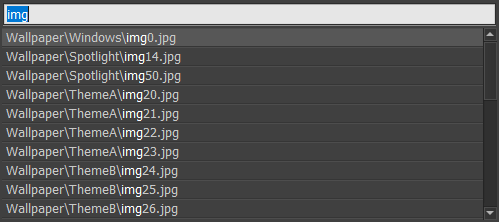
- Match incomplete names and paths.
- Combine terms, such as
wall img. - Use
'textfor exact text,^srcfor a prefix,.py$for a suffix or!tmpto exclude. - Press Enter to open the containing folder and select the file.
Everything Search
Press Ctrl+E to search your indexed folders, independently of either pane. Everything searches names and paths, not file contents, and uses its own syntax rather than fuzzy matching.
- Open Command Center with Ctrl+Shift+P and run Add folder to Everything database. Or run Add favorite folders to Everything database to import local favorites in one batch.
- Wait for Everything database is ready, then press Ctrl+E and enter a query.
- Press Enter to enter a folder or select a file in its containing folder. Press Esc to cancel.
Folder updates normalize paths, remove duplicates and omit children already covered by a parent. Replacing indexed children with a parent asks for confirmation. Favorites import is one-time, preserves unavailable local paths and does not change Favorites; unsupported entries are skipped and reported.
Folder Manager
Run Manage Everything database folders from Command Center. It opens
everything-folders:// in the active pane with Name and Path columns.
Opening the manager does not start Everything or check target availability.
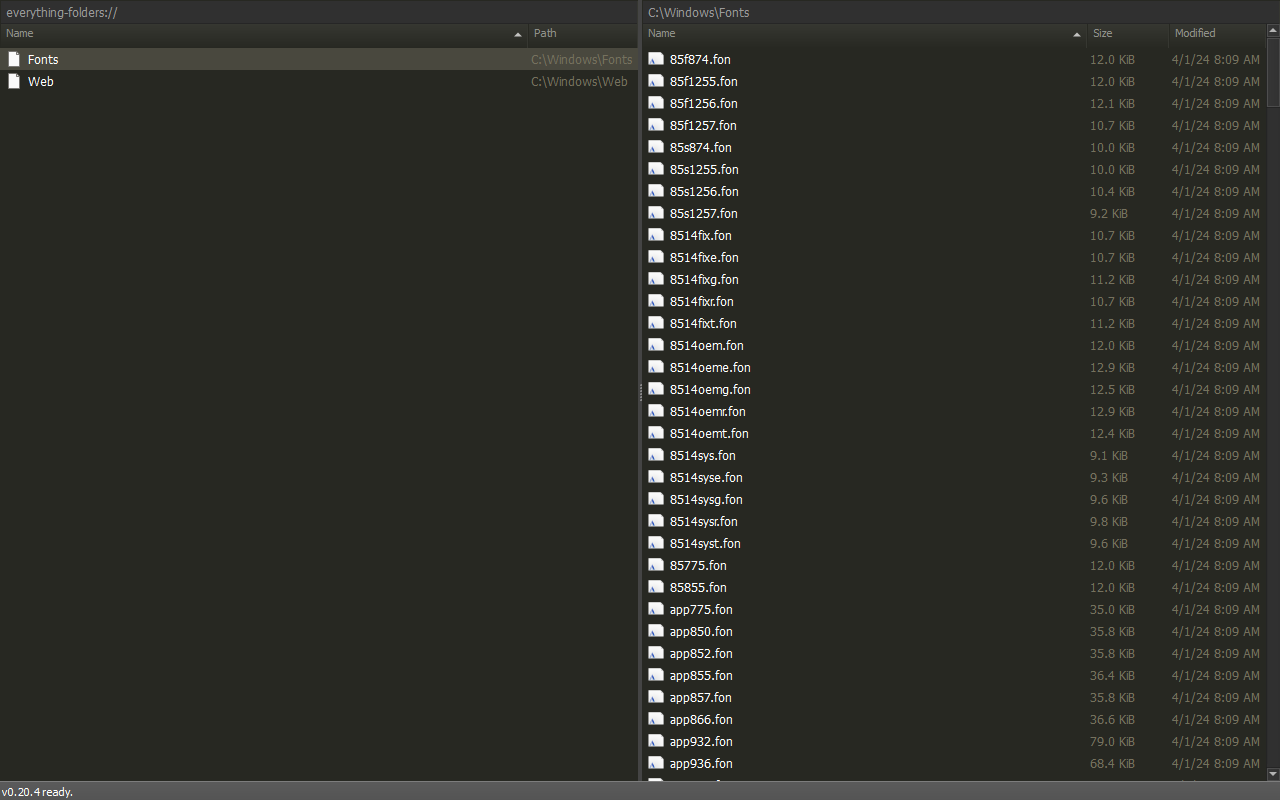
| Action | Behavior |
|---|---|
| Type / Ctrl+F | Filter the list / fuzzy-find folder names |
| Click a column header | Sort by Name or Path |
| Enter / double-click | Open the real folder; unavailable roots stay listed |
| F11 | Copy the selected roots' real paths |
| F8 / Del / Shift+Del | Remove selected roots after confirmation, never their files |
| F5 from the other pane | Add selected local folders to the index without copying files |
| Drop folders onto the manager | Add them to the index, including drops onto an existing row |
| Ctrl+R | Reload the configured root list |
Each batch is normalized and saved once. Open manager panes refresh together, preserving surviving selections. Removing the last root stops the managed process. Rename, move, archive and file-creation operations are refused for index entries.
Add folder to Everything database and Add favorite folders to Everything database remain Command Center commands. Favorites import has no special row in the manager. The old Remove folder from Everything database command has been removed; use the manager's selection and Delete actions instead.
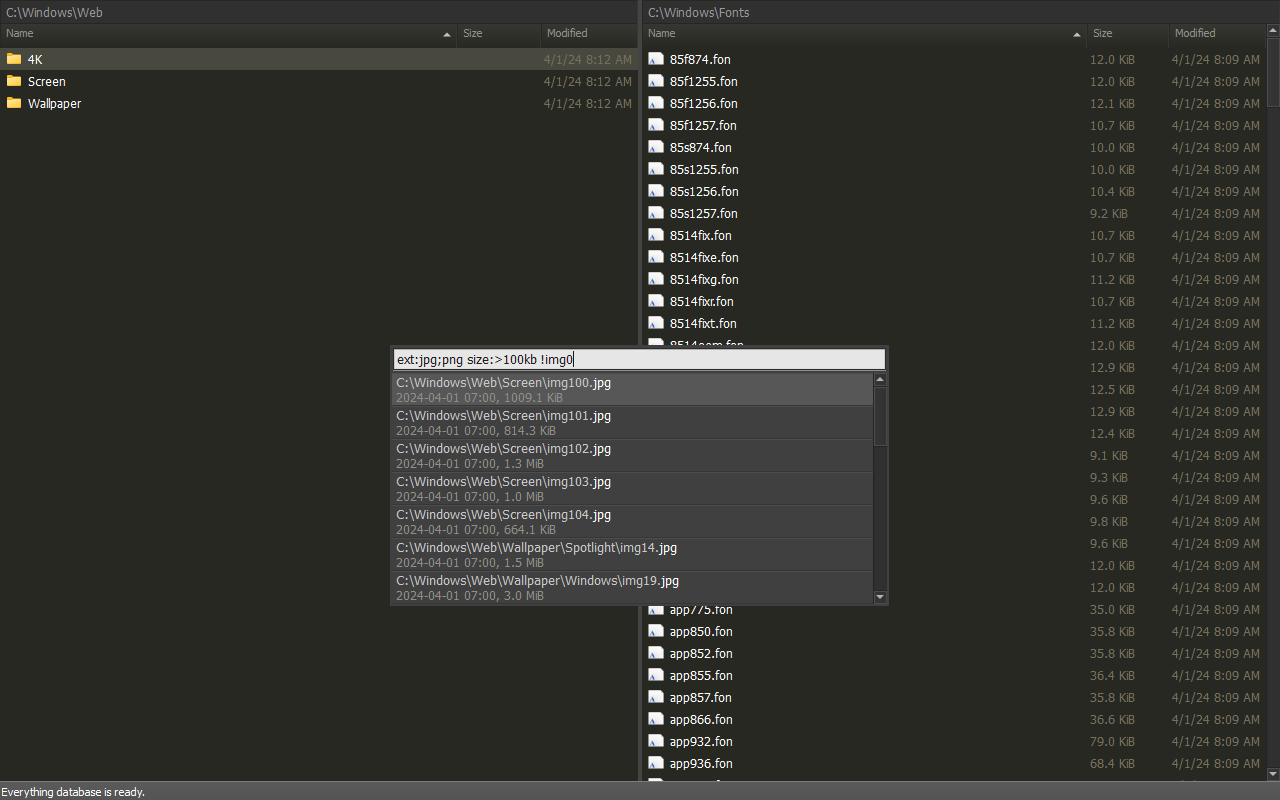
The following captures use a real, isolated Everything index containing only
C:\Windows\Web and C:\Windows\Fonts. File names, sizes and dates vary by Windows installation.
Example: Large Images
ext:jpg;pngaccepts either JPEG or PNG extensions.size:>100kbrequires a file larger than 100 KiB.!img0excludes names containingimg0.- Spaces combine these conditions with AND.
Example: Font Alternatives
path:Fonts\requiresFonts\in the full path.<consola|segoe>groups an OR: the name contains eitherconsolaorsegoe.ext:ttfkeeps TrueType files.!*b.ttfexcludes names ending inb.ttf. This tests the filename, not the font's weight.
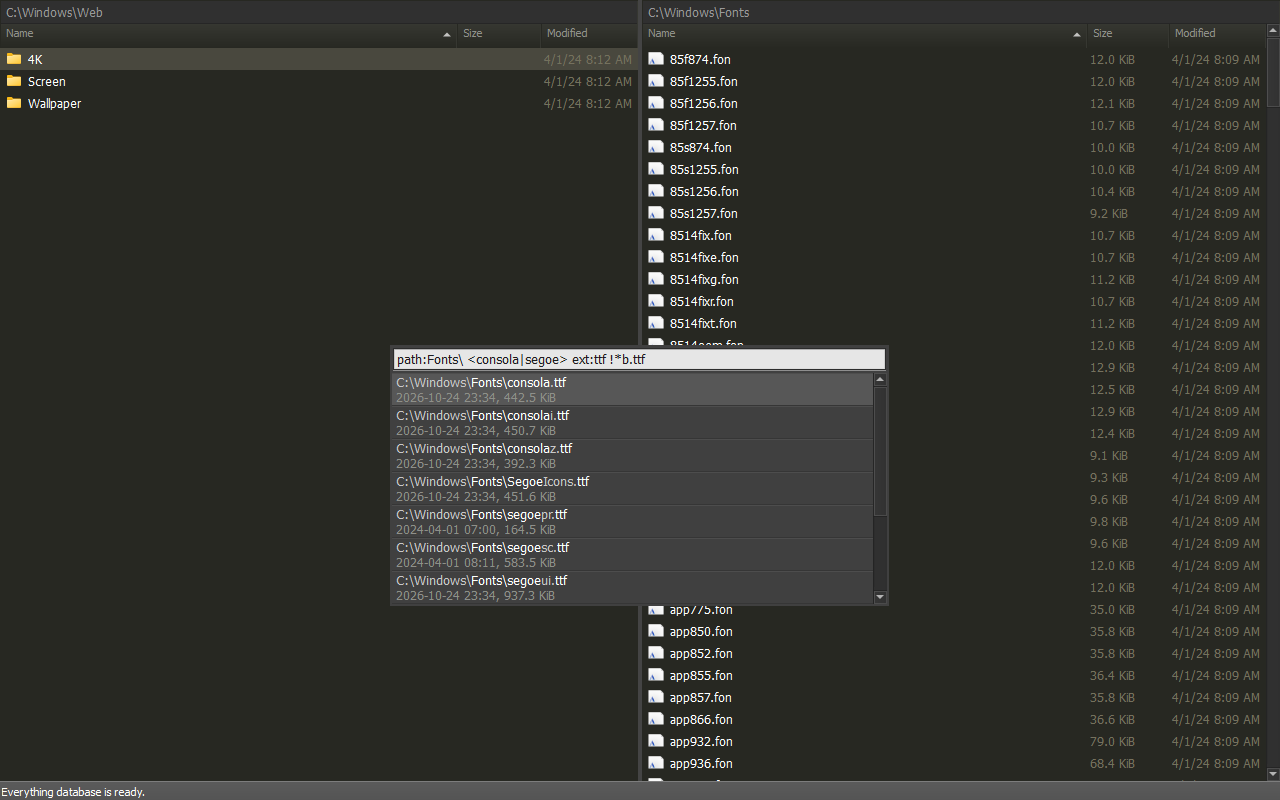
Results include match highlights, modification date and size. The default limit is 100; a count row after the results indicates truncation. If the index is starting or busy, wait and edit or retry the query; unchanged text does not refresh automatically. If Everything exits or its process identity changes, reopen search to retry. The retry will not take over a foreign instance.
Everything starts lazily. Its index and runtime state stay under
UserSettings/Local/Everything; configured roots are saved in User Settings.
It does not install a service or control your unnamed Everything instance.
See Everything settings and portability and the official Everything syntax reference.
Search Files
Press Alt+F7.
Search file names, file contents or both based on ripgrep.
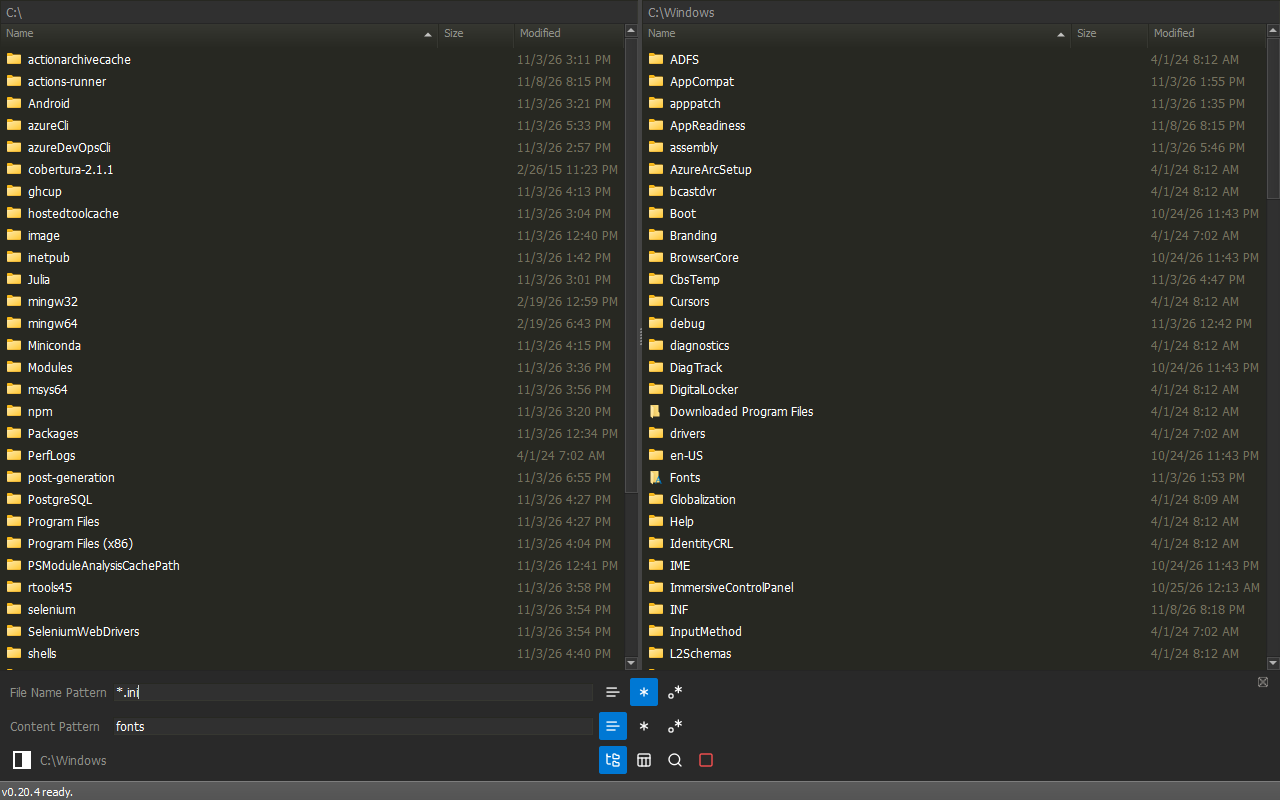
- Choose Literal, Glob or RegEx for each field.
- Leave Content Pattern empty for a name only search.
- Include subfolders with Recursive.
- Stop background work and keep results collected so far.
- Narrow, sort and open the results in the results table.
Find Files with fd
Press Shift+F7.
Use fd for precise file-system searches.
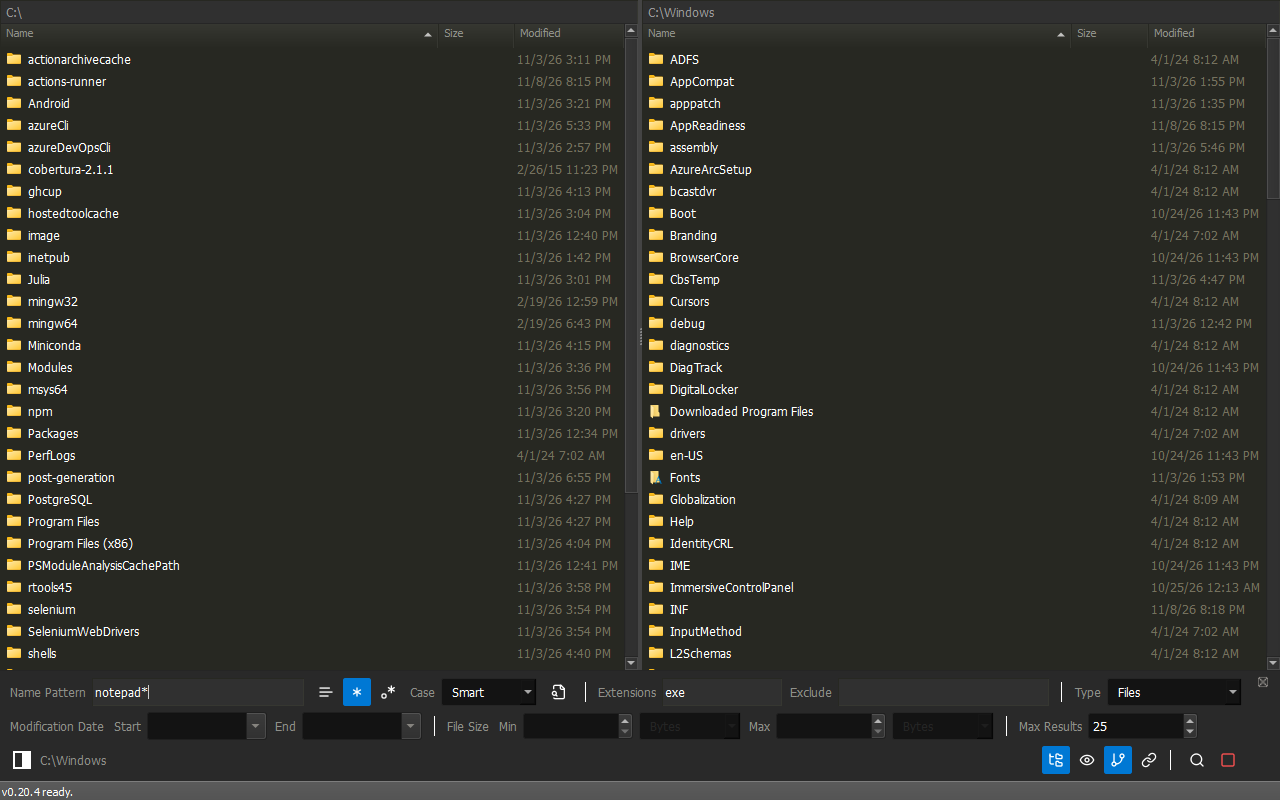
- Filter by name, extension, exclusion, date, size or type.
- Choose Glob, Literal or RegEx matching.
- Control hidden files, ignore rules and symbolic links.
- Sort and filter path, size and modified time in the results table.
Favorites
Press Ctrl+B.
Favorites keeps a list of frequently used locations.
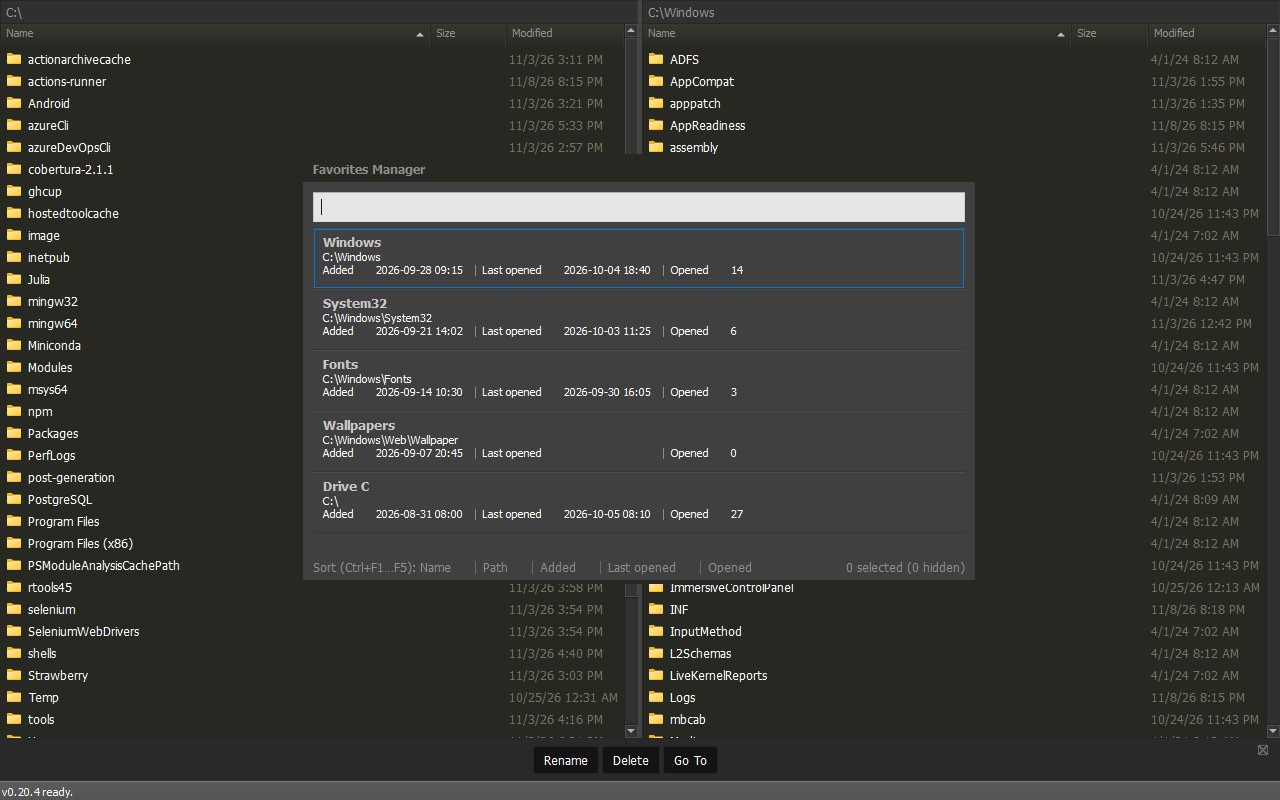
- Run Add current folder to favorites to save the active pane's folder.
- Each favorite shows when it was added, when it was last opened and how often.
- Type to filter by name or path.
- Press Enter or Go To to open the chosen favorite.
- Rename changes only the display name. Delete removes the chosen favorites, never files.
- Tab moves between the list and the buttons. Press Esc to close.
Sorting Favorites
| Key | Sorts by |
|---|---|
| Ctrl+F1 | Name |
| Ctrl+F2 | Path |
| Ctrl+F3 | Added |
| Ctrl+F4 | Last opened |
| Ctrl+F5 | Opened (count) |
Each key cycles through three states:
- First press: ascending (▲).
- Second press: descending (▼).
- Third press: the original order, newest added first (no arrow).
The footer lists the keys and marks the active one with its arrow. The sort is remembered the next time the manager opens.
See Favorites usage.
Batch File Renamer
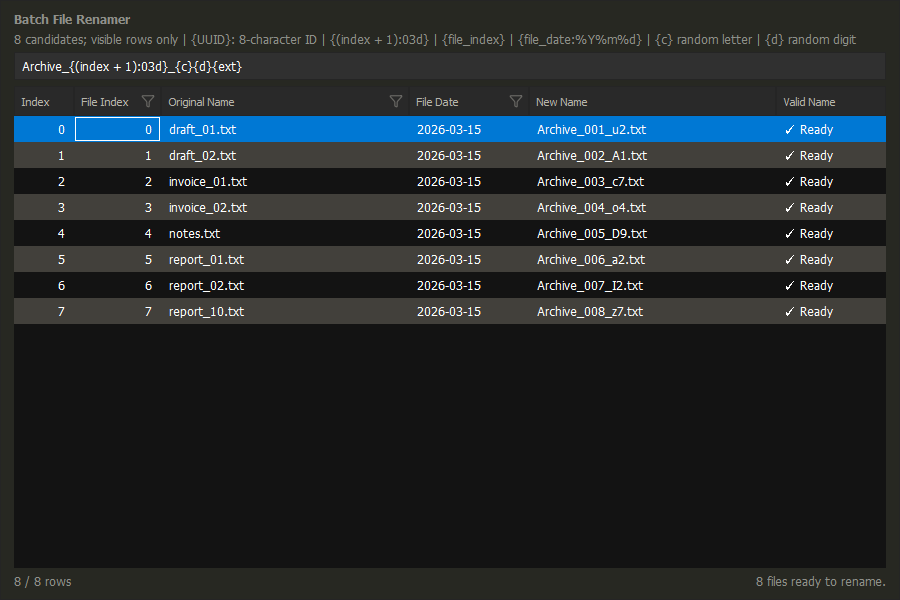
Select files in one local folder, open Command Center with Ctrl+Shift+P, and run Batch File Renamer. With no selection, it uses the file under the cursor.
Type a template, then review New Name and Valid Name. Sort or filter the source columns to choose the order and files to rename. Press Enter to apply the visible results, or Esc to cancel. Files hidden by a filter are untouched; files merely scrolled out of view are still included.
Template Fields
Use braces around field names. Ordinary text is copied directly into the new name.
Python f strings
The syntax is inspired by Python f-strings.
There are predefined variables to be used in the renaming pattern.
| Field | Meaning |
|---|---|
{name} |
Original filename without its final extension |
{ext} |
Final extension, including the dot |
{index} |
Position among the current visible results, starting at 0 |
{file_index} |
Fixed natural-order position among all regular folder files |
{current_date} |
Local date/time when this rename session opened |
{file_date} |
File's last-modified date/time, in local time |
{c} |
One random letter: a-z or A-Z |
{d} |
One random digit: 0-9 |
{UUID} |
Eight-character random alphanumeric ID |
{HASHID} |
Alias of {UUID} |
{SQIDS} |
Alias of {UUID} |
Both indices start at zero. Sorting and filtering change {index}; {file_index}
keeps its captured value and includes hidden and unselected regular files.
Keep {ext} to retain the extension; leaving it out removes the extension.
Template Examples
These examples use report.txt, visible index 0, folder index 2, and a
file modified on 2026-03-15 at 10:30:00. The session date is 2026-10-14.
Random characters in the examples are illustrative.
| Template | Example Result |
|---|---|
{name}{ext} |
report.txt |
Copy_{name}{ext} |
Copy_report.txt |
{index:03d}_{name}{ext} |
000_report.txt |
{(index + 1):03d}_{name}{ext} |
001_report.txt |
{(file_index + 1):03d}_{name}{ext} |
003_report.txt |
{file_date:%Y%m%d}_{name}{ext} |
20260315_report.txt |
{file_date:%Y-%m-%d_%H-%M-%S}{ext} |
2026-03-15_10-30-00.txt |
{current_date}_{name}{ext} |
2026-10-14_report.txt |
{name}_{c}{c}{d}{d}{ext} |
report_aB07.txt |
{name}_{UUID}{ext} |
report_8fj2LmQ9.txt |
{{draft}}_{name}{ext} |
{draft}_report.txt |
Formatting Rules
- Numbering: add a positive integer to
{index}or{file_index}to choose the starting number. Use:03dfor at least three digits with leading zeros. Plain values and:dare also supported; widths may be 1-32 and never truncate. - Dates: the default is
YYYY-MM-DD. Supported codes are%Y(four-digit year),%y(two-digit year),%m(month),%d(day),%H(24-hour hour),%M(minute),%S(second), and%%(literal percent). Use hyphens instead of colons in times, because Windows filenames cannot contain:. - Random text: repeat
{c}or{d}for more characters. Each occurrence is a separate draw, so characters can repeat. The sequences stay with each file through edits, sorting and filtering; the rename matches the preview. Reopening generates a new set. Random names are not guaranteed unique. - Short IDs:
{UUID},{HASHID}and{SQIDS}are aliases for the same eight-character ID per file, usinga-z,A-Zand0-9. Repeated aliases use the same value; editing, sorting and filtering do not regenerate it. The dependency-free generator follows Sqids' single-number encoding concept without its word blocklist. These are not standard UUIDs, cryptographic hashes or guaranteed-unique names; collisions still block renaming. - Literal braces: write
{{and}}to include{and}in a filename. - Limits: this is f-string-like syntax, not Python code. Function calls,
attribute access, conversions such as
!r, subtraction and nested fields are unsupported. Only index fields allow arithmetic; name, extension and random fields accept no format specifications.
Review Before Renaming
Invalid or conflicting names block the rename; existing files are never overwritten. Cancellation during execution keeps changes already completed. There is no automatic undo or rollback.
The tool supports up to 25,000 regular files, within the preview size limit. Folders, links, junctions, files with multiple hard links, UNC network paths and archive entries are not supported. Sparse files and cloud placeholders are allowed. Case-only renames and swapping occupied names are not supported.
See availability and further details.
Edit Attributes
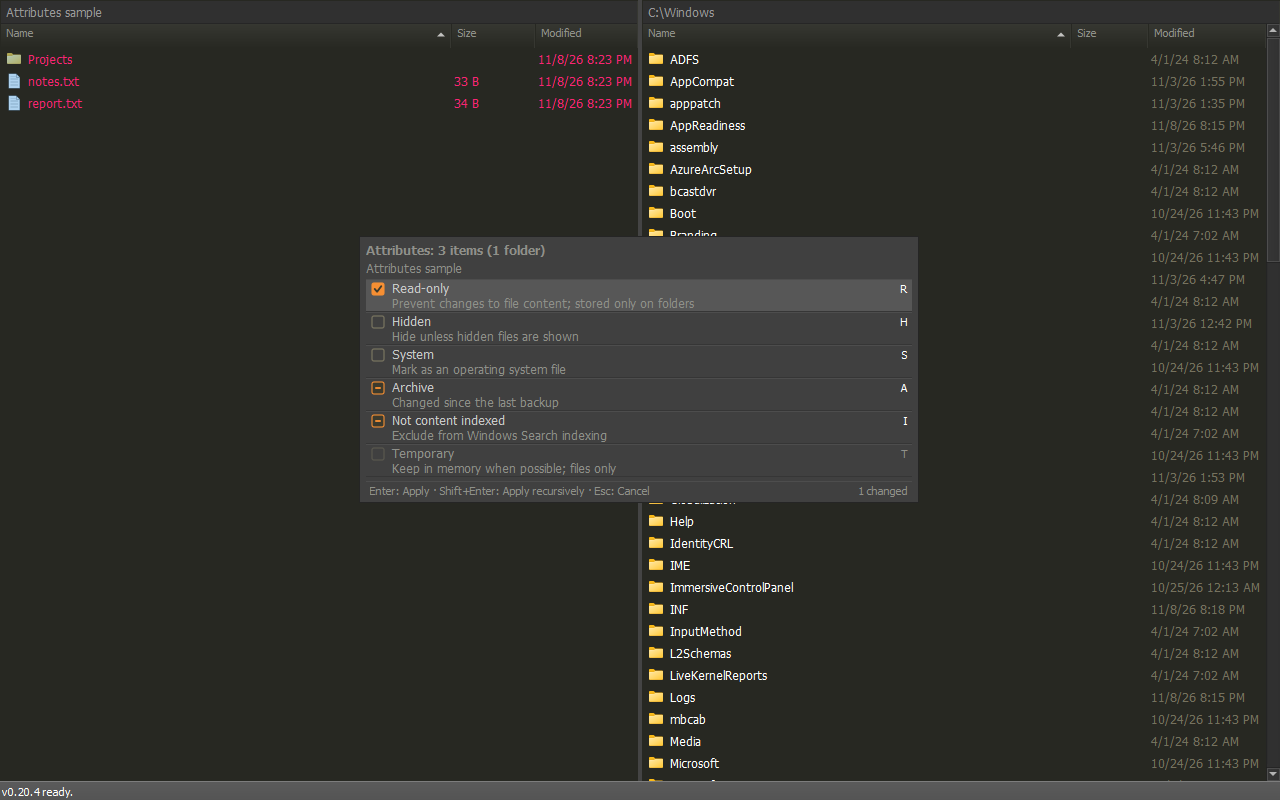
Select files or folders in a local pane and choose Edit attributes... from the file context menu, or run Edit attributes from Command Center (Ctrl+Shift+P). With no selection, it uses the item under the cursor.
The list shows Read-only, Hidden, System, Archive, Not content indexed and Temporary. A mixed box means the chosen items differ.
| Key | Action |
|---|---|
| Space | Next state; mixed returns only where it started |
| Shift+Space | Previous state |
| Enter | Apply the changes to the chosen items |
| Shift+Enter | With a folder chosen: apply recursively to its contents |
| Esc | Cancel |
Only the attributes you changed are written; if nothing changed, nothing is written. Recursive runs skip links and junctions instead of following them. Panes showing affected folders refresh. Failures are listed at the end.
Design Decisions
| Decision | Behavior | Why |
|---|---|---|
| Changed attributes only | Unchanged attributes and other bits are never written, also inside folders. | Every write is one the user asked for. |
| No change, no operation | If the final states equal the starting states, nothing runs, for Enter and Shift+Enter alike. | Opening and confirming must be safe. |
| Recursion on approval | Shift+Enter applies recursively; it is offered only when a folder is chosen. | One dialog, no extra prompt. |
| Static state | Attributes are read once: chosen items at start, folder contents while walking. Nothing is re-read before writing. | Simple and predictable; concurrent changes by other programs are the user's responsibility. |
| Links and junctions | Rejected when chosen; skipped, never followed, inside folders. | No loops and no changes outside the chosen folders. |
| Mixed is a starting state | A mixed box can return to mixed (unchanged) but never becomes mixed otherwise. | Mixed means "leave each item as it is". |
| Failures do not stop the run | Up to 1,000 failures are listed at the end; the rest are counted. | One locked file should not block the others. |
Limitations: - Attributes are read when the command starts. Changes made by other programs during the run are overwritten. - To give items inside a folder an attribute the folder already has, set it off and then on in two runs, or select those items. - Temporary applies to files only. Windows stores Read-only on folders but does not enforce it. Compressed, Encrypted and UNC paths are not supported.
See further details.
Robocopy
Use Windows' multithreaded Robocopy for large folder trees, batches of files or network transfers. It provides an alternative to ++F5++/++F6++ which is optimized for large number of files or size.
Different Policies
Robocopy handles overwrites, skipped files, links and interruptions differently from built-in Copy/Move. See Robocopy policies.
F5/F6 Or Robocopy?
| Need | Choose |
|---|---|
| Built-in conflict prompts and staged regular-file copies | F5 / F6 |
| Move within one volume without copying file contents when possible | F6 |
| Native multithreaded transfers, accepting Robocopy's merge/overwrite/skip behavior | Copy with robocopy / Move with robocopy |
Robocopy is an alternative, not a guarantee of greater speed. Native skips can leave Move sources behind, and interruption can leave partial output.
Select files or folders, open Command Center with Ctrl+Shift+P, and run Copy with robocopy or Move with robocopy. Choose the destination folder.
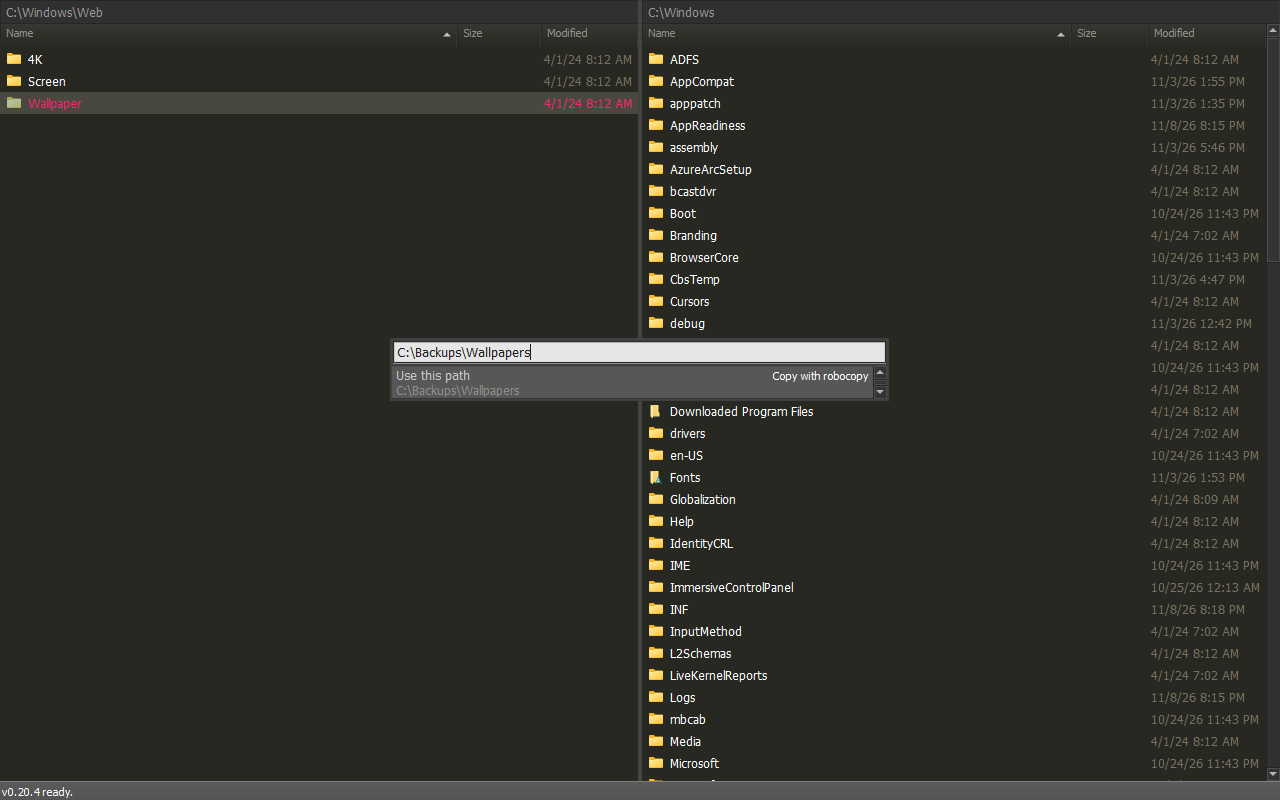
Progress Bar
The progress bar shows the progress of batched jobs. For single item it will show "Busy" indication only.
See advanced usage, native overwrite behavior, settings and logs.
Directory Size
Press Ctrl+Shift+D.
Folder totals appear in the Size column of both panes.
One-Time Or Automatic Totals?
| Need | Use | Result |
|---|---|---|
| Total only the chosen directories | Ctrl+Shift+Enter | One-time status message; automatic mode stays unchanged |
| Compare directory sizes while browsing | Ctrl+Shift+D | Progressive Size cells in both panes; mode is remembered |
With no marks, the one-time command uses the directory under the cursor. It does not populate Size cells. Automatic totals can take longer because they calculate all listed directories, not only the chosen ones.
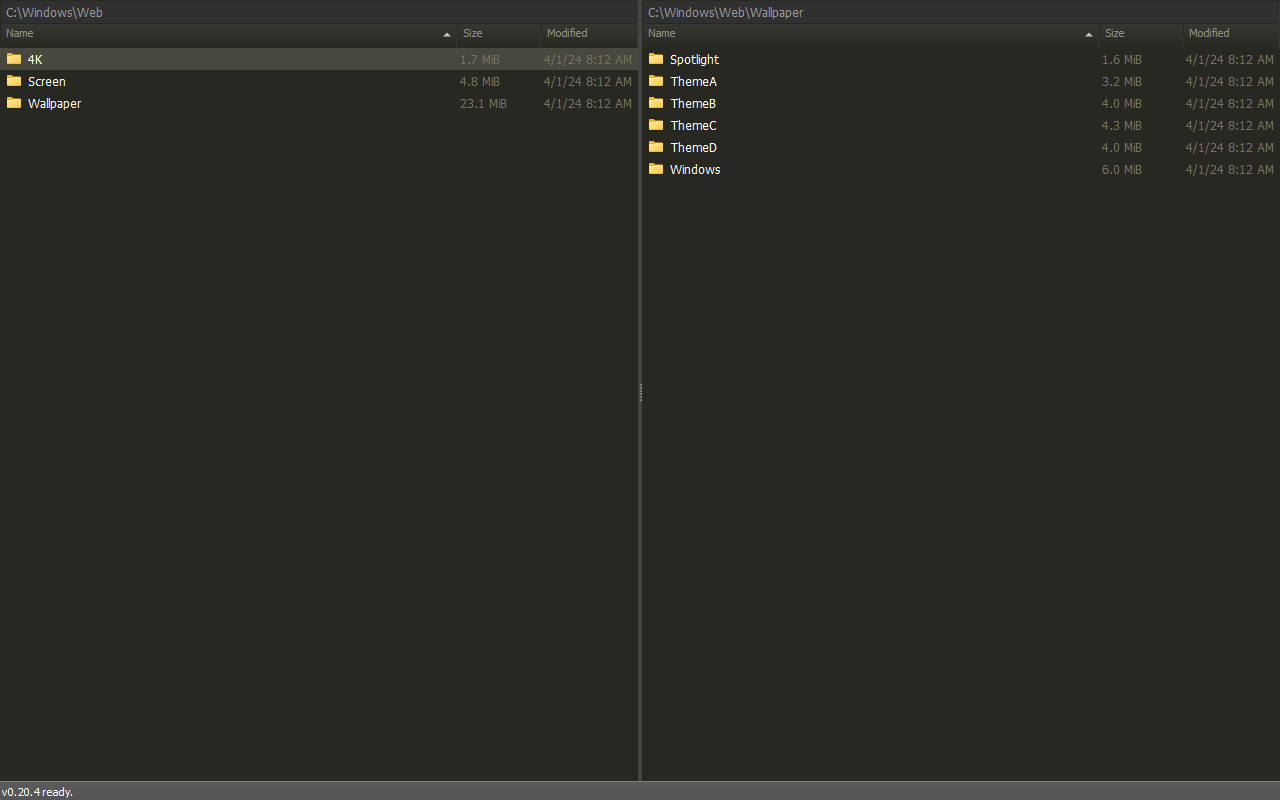
...marks a total still being calculated.+marks a total that reached the file limit.?marks an error.- Press Ctrl+F4 to sort by directory size.
- Press Ctrl+Shift+Enter for a one-time total of the selected folders.
- The setting is kept across restarts. Links and junctions are not followed.
See Directory Size usage.
File Hash
Press Ctrl+H.
Calculate the SHA-256 hash of the file under the cursor.
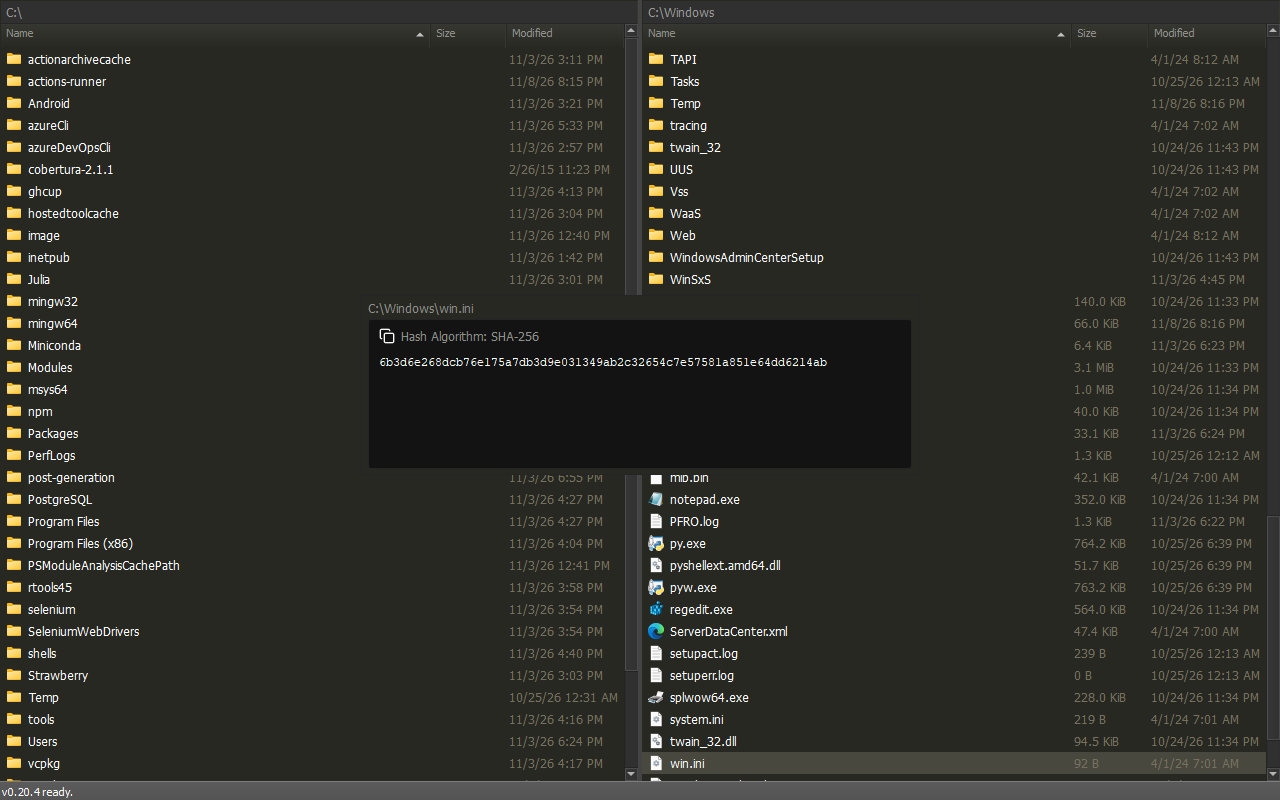
- Run Calculate file hash by to choose SHA-384, SHA-512, SHA3, BLAKE2, MD5, SHA-1 or CRC32.
- Press Enter or click the copy icon to copy the hash.
- Large files show progress and can be canceled.
- Press Esc to close.
See File Hash usage.
Checksum Files
Press Ctrl+Shift+P and run Generate checksum file or Verify checksum file. Both commands are bundled with the application.
- Generate from marked files and folders, recursively. With no marked selection, include the entire current folder. SHA256 is the default; twelve algorithms are available, including native BLAKE3.
- The suggested output name is the folder name plus the algorithm's extension,
or
checksumsat a drive/share root. Replacement requires confirmation. - Verify the highlighted supported checksum file, or the first supported file in case-insensitive filename order. Verification checks every manifest entry.
- Results open in a non-modal table with the summary above it. Every result is listed when the complete view fits the display limit; otherwise only problems are listed and the summary says so. Use the column filters to narrow the view.
- A navigated junction root is supported; redirected paths below that root are refused. Cancellation or a read failure prevents publication of a generated file.
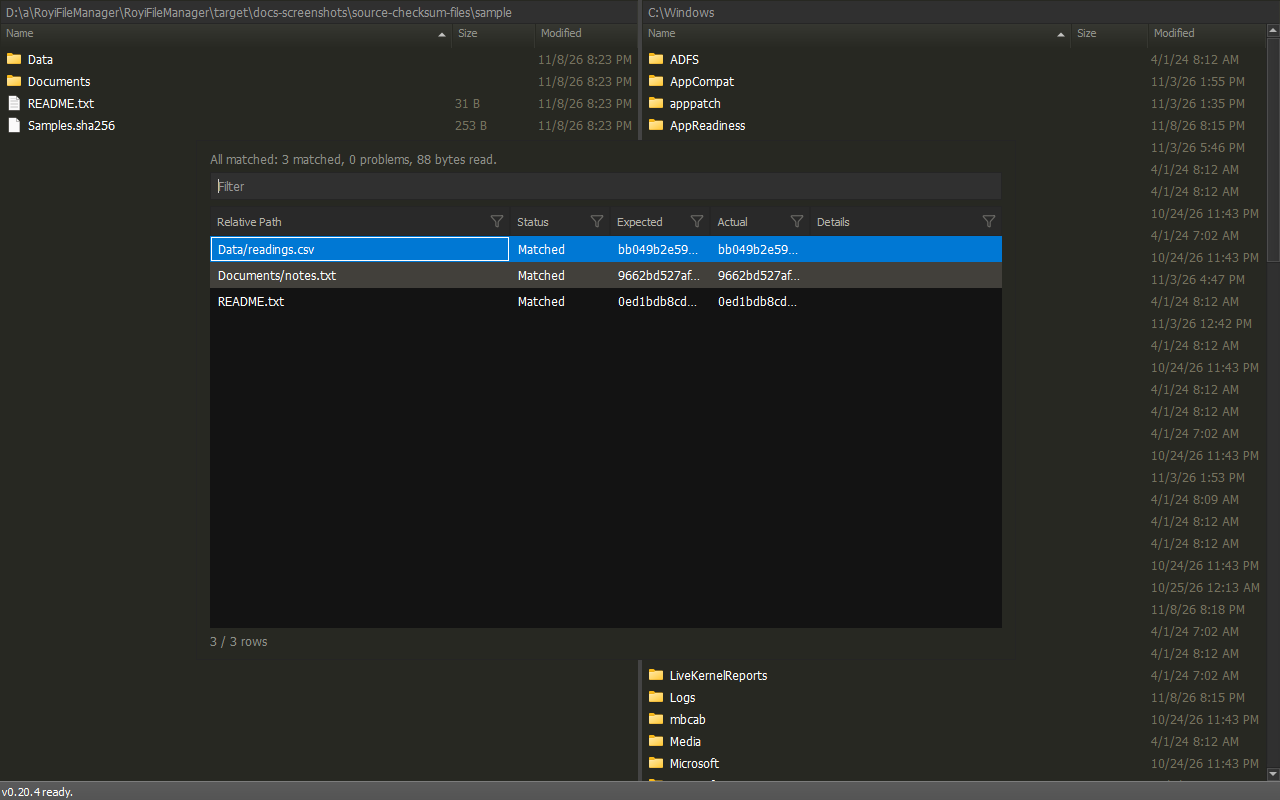
Five supplied Total Commander formats are verified. Other TC/DC profiles and network-storage checks remain unverified; writer-reader roundtrips alone do not establish interoperability.
See Checksum Files usage and compatibility.
Process Pane
Run Show OS' processes from the Command Center.
The active pane lists running processes by Name and PID.
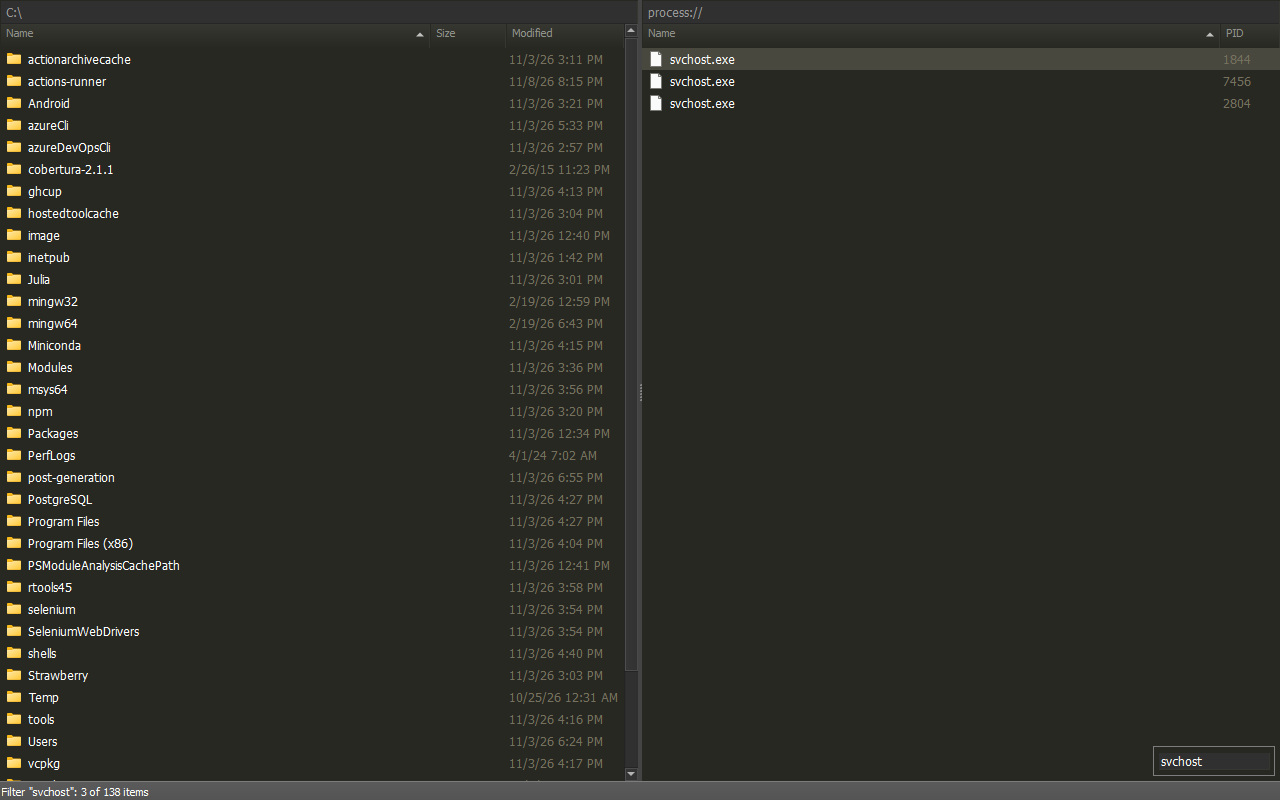
- Type to filter. Click a column to sort. Press Ctrl+R to refresh.
- Press F8 to end the process under the cursor after confirmation.
- Ending is forced: unsaved data in that process is lost.
- Only your current permissions are used. System and critical processes are refused.
Find Blocking Processes
Right-click one file or folder in a local pane and choose Find blocking processes, or run Find blocking processes from the Command Center. It lists processes keeping the item open, not proven blockers: sharing permissions may still allow deleting, moving or renaming it.
- The table shows Process, PID, Item and Program. Ctrl+Enter or a double-click on Item or Program goes to that path.
- Open files and folders, running programs, loaded DLLs and working folders are detected.
- For a folder, the folder and everything inside it are checked, up to 100,000 items. Links and junctions are not followed.
- Results are limited to 10,000 process/item pairs and bounded text; larger or long-path results are marked truncated. Retained paths remain navigable.
- Cancel works during scanning, name lookup and result preparation, once an ongoing Windows call returns.
- Works with regular user rights; administrator rights are never requested.
- It only reports. Close the item in that program, or end the process in the process pane.
See Process Pane usage.