Configuration
RoyiFileManager is portable.
Settings live in UserSettings beside the application.
Copy this folder to back up or move your configuration.
User configuration files (AppSettings.yaml, plug-in settings, key bindings and
context menus) use YAML and may contain # comments. When
RoyiFileManager saves a setting, it keeps the file's comments and only writes values
that differ from the defaults. Bundled defaults list every option with a comment.
Application state (Panes, Favorites, Visited Paths, Sort Settings, command
history) stays in JSON files managed by the application.
Application Settings
Most preferences save automatically as you use the application:
- Pane locations and sorting.
- Favorites.
- QuickView display mode.
- Directory size state.
- Search modes and options.
- Status bar mode.
Close RoyiFileManager before editing configuration files by hand.
Application settings (text editor and viewer, comparators, terminal, Explorer, archive handlers, QuickView table limit, live refresh) live in:
Update Settings Template
Run Settings: Update settings file template in Command Center after an
upgrade to add missing options to UserSettings\AppSettings.yaml. Defaults and
their descriptions are added as comments; existing values, custom settings and
comments are preserved. Existing commented examples are not duplicated, including
nested options. The command needs no text editor and makes no changes when the
template is up to date. Remove the leading # to activate an added option,
then edit its value and restart. Plug-in settings files are not updated.
Plug-in settings, key bindings and menus live in:
Leave Local, Panes, Sort Settings and Visited Paths to the application.
Session State
The window size and each pane's folder and column widths are saved in
UserSettings\Local when you exit.
- If saving fails, an error appears once per session.
- Session files that are links are never overwritten.
Know Where Plug-in Settings Go
Bundled plug-ins load first, followed by third-party and user plug-ins. The user Settings plug-in loads last, so its configuration can override bundled defaults. Put custom key bindings and menu files under UserSettings\Plugins\User\Settings rather than editing shipped plug-ins.
On startup, every missing user file is created from the plug-in's bundled <Name>.yaml defaults, with each option commented out. Remove the # from an option to change it. Key binding and context menu files get a short commented example instead.
Start with Your First Plug-in and the API Overview. Commands and URL helpers retain familiar fman patterns, but custom filesystem providers and columns use RoyiFileManager's snapshot API: scan(path, check_canceled) returns a Listing, and columns implement text(listing, index) and keys(listing, ascending). Do not use upstream per-file column examples unchanged.
See Context Menus for a file-menu example and the plug-in API reference for the full contracts.
Behavior and Limits
These files are in the user Settings folder.
Restart RoyiFileManager after external edits.
Fuzzy Find
Use SearchFileFuzzy.yaml.
| Parameter | Default | Effect |
|---|---|---|
mode |
fuzzy |
Use fuzzy subsequence matching or regular substring matching. |
max_recursive_entries |
50,000 | Maximum files and folders inspected while building a find index. |
max_results |
100 | Maximum results shown in Quicksearch. |
show_metadata |
false |
Show modified time and size below each result. |
Limits must be positive integers. Larger values can use more time and memory.
Hidden entries follow the active pane. Press Ctrl+. before searching to show or hide them.
Search Files
Use SearchFiles.yaml.
| Parameter | Default | Effect |
|---|---|---|
name_mode |
glob |
Filename matching: literal, glob or regex. |
content_mode |
literal |
Content matching: literal, glob or regex. |
recursive |
true |
Include subfolders. |
extended |
false |
Add Size and Date Modified columns (Extended mode). |
encoding |
auto |
Use auto or windows-1252. |
max_rows |
10,000 | Maximum result rows retained. |
max_text_bytes |
16 MiB | Maximum retained result text and payload. |
max_file_lines |
200 | Maximum matching lines retained per file. |
max_file_bytes |
50 MiB | Largest file eligible for content search. |
Numeric limits must be positive. They can be lowered, but not raised above their defaults.
Find Files with fd
Use FindFiles.yaml or change these options in the Find Files panel.
| Parameter | Default | Effect |
|---|---|---|
pattern_mode |
glob |
Name matching: literal, glob or regex. |
case_mode |
smart |
Use smart, sensitive or insensitive matching. |
type |
f |
Search for files by default. |
full_path |
false |
Match the absolute path instead of only the name. |
recursive |
true |
Include subfolders. |
hidden |
false |
Include hidden entries. |
honor_gitignore |
true |
Honor .gitignore rules. |
follow_symlinks |
false |
Follow symbolic links. |
min_size_unit, max_size_unit |
b |
Default size units for panel bounds. |
Max Results is a per-search field. Leave it blank to count all matches, or enter a positive integer.
The results table retains at most 10,000 rows or 16 MiB. An uncapped search can continue counting after the table is full.
Other Behavior Settings
| File | Parameter | Default | Effect |
|---|---|---|---|
Status Bar.yaml |
mode |
disabled |
Use disabled or single (active pane). Ctrl+S toggles the mode. |
Status Bar.yaml |
max_entries |
5,000 | Maximum pane entries inspected for status totals. |
Status Bar.yaml |
size_divisor |
1,024 | Use 1,024 for KiB or 1,000 for KB. |
DirectorySize.yaml |
enabled |
false |
Enable automatic directory totals. |
DirectorySize.yaml |
max_files |
10,000,000 | Regular files counted per root. Use 0 for unlimited. |
Favorites.json |
max_favorites |
200 | Maximum saved favorites before replacement is offered. |
CalculateFileHash.yaml |
default_algorithm |
sha256 |
Initially selected hash algorithm. |
CalculateFileHash.yaml |
remember_last_algorithm |
false |
Remember the last accepted algorithm. |
CalculateFileHash.yaml |
auto_copy |
false |
Copy a completed current result automatically. |
CalculateFileHash.yaml |
chunk_size_mib |
4 | Read chunk size. Values are clamped to 1–64 MiB. |
QuickView.yaml |
image_mode |
fit |
Use fit or actual_size. |
QuickView Table Limit
Run Set QuickView table limit in the Command Center to choose the largest CSV/TSV
file shown as a table. The choice is saved as quickview_table_max_file_mb in
AppSettings.yaml.
| Largest File | Table Engine Memory | Default |
|---|---|---|
| 512 MB | 192 MiB | |
| 1,024 MB | 384 MiB | |
| 2,048 MB | 768 MiB | Yes |
A lower limit uses less memory and is usually quicker, but accepts smaller files.
The engine memory is not the application's total memory use, and a small limit can
slow sorting of large files. Larger files show the limit instead of a table.
Table View keeps a temporary cache under UserSettings\Cache\QuickViewCsv, up to
twice the file size (at most 8 GiB), and deletes it when the preview closes.
Filtering files of long, varied non-English text can need more; Table View then
stops that filter with a cache-limit message.
Live Refresh During File Operations
By default, panes update while Copy, Move, Delete and other file operations run. Every update rescans the shown folder, so an operation slows down, and more so in large folders.
Run Toggle live refresh during file operations in the Command Center to turn
this off or on. The choice is saved as live_refresh_during_file_operations in
AppSettings.yaml (default true) and applies from the next operation.
| Live Refresh | Panes During an Operation | Speed |
|---|---|---|
| On (default) | Show files as they are copied, moved or deleted. | Slower, and slower in large folders. |
| Off | Update once when the operation ends, including on error or cancel. | Faster. |
See measured copy times for both modes.
With live refresh off, a pane keeps its previous contents during the operation, so an item already moved or deleted can still be selected until it ends. Ctrl+R, navigation and changes made by other programs or commands still show the progress so far.
Fixed Safety Limits
These values are not user-configurable.
| Feature | Limit |
|---|---|
| Shared result tables | 10,000 rows |
| Shared result-table payload | 16 MiB |
| QuickView encoded image | 64 MiB |
| QuickView image dimensions | 65,536 pixels per edge |
| QuickView decoded image | 128 million pixels |
| QuickView table columns | 256 |
| QuickView table field | 1,048,576 characters |
| QuickView table copy | 8 MiB |
Keyboard Shortcuts
Press F1 to view active shortcuts.
Edit Key Bindings.yaml in the user Settings folder to add custom bindings:
Your bindings take precedence over the built-in ones.
To disable a built-in shortcut, bind it to none:
This keeps F8 for the Recycle Bin and disables Del.
Restart RoyiFileManager after editing the file.
See the keyboard shortcut reference.
Context Menus
Right-click a file for its file menu, or empty pane space for a separate folder menu. Both menus run plug-in commands and can be customized without changing keyboard shortcuts.
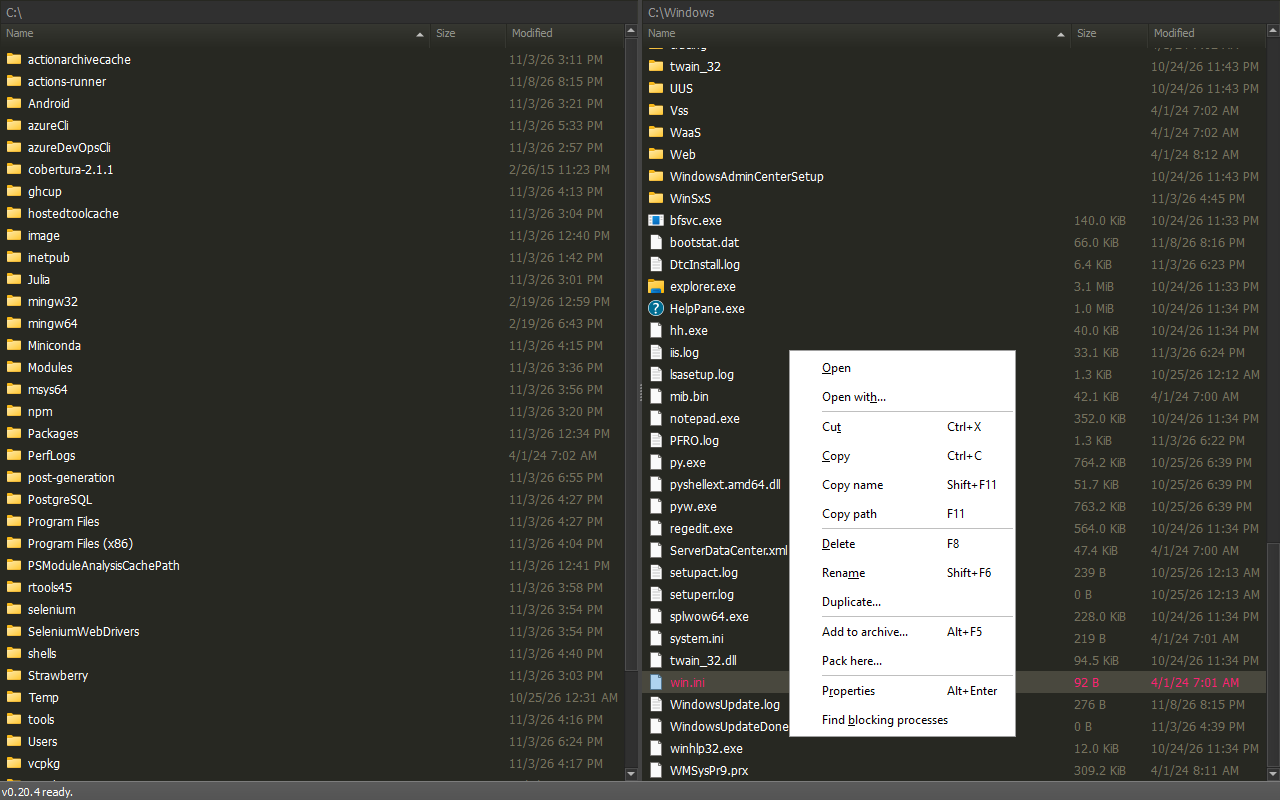
To add a file-menu command, edit UserSettings\Plugins\User\Settings\File Context Menu.yaml:
If the file already has entries, add these to its list. The matching clipboard ID inserts the command in that section of the built-in menu; the command copies marked paths, or the clicked file's path when nothing is marked.
captionis the displayed label;&marks a keyboard mnemonic and-makes a separator.commandnames a plug-in command in snake_case; optionalargssupplies its arguments.ididentifies an insertion point so user entries can join a built-in section. Commands whoseis_visible()returns false are omitted.
Use Folder Context Menu.yaml in the same Settings folder to customize the empty-space menu. Run Reload plugins in the Command Center to apply changes.
Appearance
Create Theme.css in the user Settings folder for visual overrides.
The file uses CSS syntax with a fixed set of selectors. Their properties go to Qt Style Sheets, so use properties that Qt supports. Other selectors are ignored.
| Selector | Styles |
|---|---|
* |
Every widget |
th |
Column headers |
.locationbar |
Location bars |
.statusbar |
Status bar |
.statusbar-pane |
Extended status bar statistics |
.quicksearch-query |
QuickSearch and QuickList query fields |
.quicksearch-item |
QuickSearch and QuickList rows |
.panel |
Docked Panel controls |
.plugin-panel-dock |
Docked Panel frame |
.plugin-tool-window |
Plug-in tool windows |
QuickSearch text also reads font-size and color from .quicksearch-item-title,
.quicksearch-item-hint and .quicksearch-item-description, and color from
.quicksearch-item-title-highlight.
To use a custom font, put its .ttf file in the same folder and name its
family in font-family.
Run Reload plugins in the Command Center to apply changes.
Text Editor and Viewer
Press Ctrl+Shift+P and run Set text editor or Set text viewer.
- Choose CudaText, Ecode, EmEditor, Notepad++, Notepad 4, Royi Text Editor or Manual configuration.
- Select the program's
.exefile. - Enter arguments when using Manual configuration.
Press F4 to edit. Press F3 to view.
Do not add a file placeholder to manual arguments. RoyiFileManager appends the selected file path.
The editor and viewer are independent. Each setup list also has a Clear option.
File and Folder Comparators
Press Ctrl+Shift+P and run Set file comparator or Set folder comparator.
Choose Beyond Compare, Meld, SmartSynchronize, WinMerge or Manual configuration.
Run Compare files or Compare folders from the Command Center.
Manual arguments must not contain path placeholders. RoyiFileManager appends both paths.
The file and folder comparators are independent. Each setup list also has a Clear option.
Terminal and Explorer
Press F9 to open a terminal in the current folder.
Press F10 to open the folder in Explorer.
Windows defaults work without configuration. Advanced users can override them in AppSettings.yaml:
terminal:
  args: ['C:\Tools\Terminal\terminal.exe']
  cwd: '{curr_dir}'
  shell: false
native_file_manager:
  args: ['C:\Tools\FileManager\manager.exe', '{curr_dir}']
  shell: false
Replace the example executable paths with installed programs.
Advanced Configuration
Configuration files are layered. User values override bundled defaults.
Use UserSettings\AppSettings.yaml for application overrides. Tool setup commands write only their changed values there.
Run Edit settings in the Command Center to open this file in the configured
text editor. If missing, it is created with every option listed as a comment;
remove the # from an option to change it. Without a text editor, an alert
points to Set text editor. Restart RoyiFileManager after saving: running
commands keep the loaded values and can write them back.
Back up UserSettings before manual changes. Invalid YAML is reported when the related plug-in loads.