Search and Find
Choose the smallest tool that fits the job.
Filter This Pane
Start typing.
This hides non-matching names in the current pane.
| Query | Meaning |
|---|---|
report |
Contains report |
*.pdf |
Contains a match for the pattern, including report.pdf.bak |
*.pdf$ |
Ends in .pdf, excluding report.pdf.bak |
^report |
Starts with report |
.py$ |
Ends with .py |
!tmp |
Does not contain tmp |
See the side-by-side extension example. This is pane-filter syntax; other search tools have their own Glob rules.
Press Esc to clear it.
Find by Name
Press Ctrl+F for the current folder.
Press Ctrl+Shift+F to include subfolders.
Both commands use the active pane's hidden-file visibility when the search starts.
Results use fuzzy matching. Try rpt pdf to find annual report.pdf.
| Query | Meaning |
|---|---|
'report |
Exact text |
^src |
Starts with src |
.py$ |
Ends with .py |
!tmp |
Exclude exact text |
report pdf |
Match both terms |
Search Indexed Folders with Everything
Press Ctrl+E. First add roots with Add folder to Everything database or Add favorite folders to Everything database in Command Center.
The search covers the shared index, not the current pane. Use Everything syntax:
These combine extension alternatives, size comparisons, exclusions, path matching and grouped OR conditions. They are not fuzzy queries and do not search contents. See worked examples with screenshots.
Find with fd
Press Shift+F7.
Filter by name, extension, date, size, or type.
Use this for precise file-system searches.

Find Notepad Executables
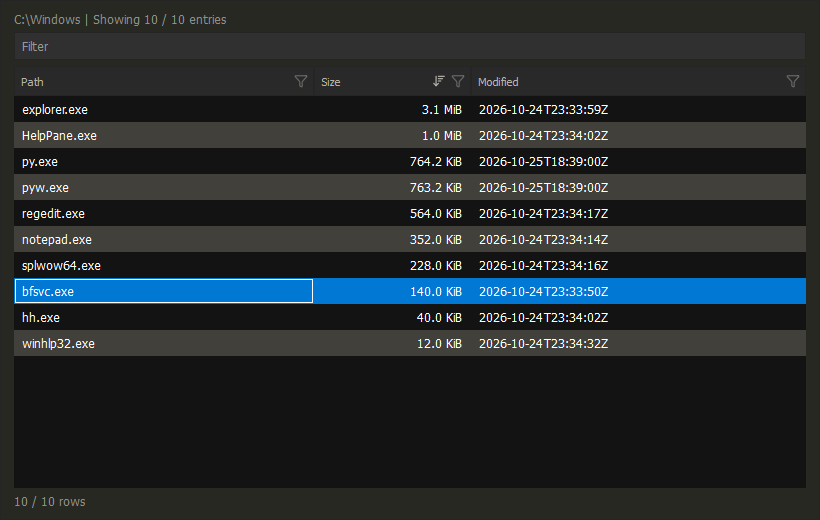
Set Name Pattern to notepad* and keep Pattern Mode set to Glob.
Set Extensions to exe, enable Recursive and set Max Results to 25.
Press Search.
Results open in a results table with Path, Size and Modified columns. Size and Modified sort and filter by value.
Search Files
Press Alt+F7.
Search names and contents with Literal, Glob, or RegEx modes.
Leave the content field empty to search names only.
Search runs in the background. Use Stop to keep results collected so far.
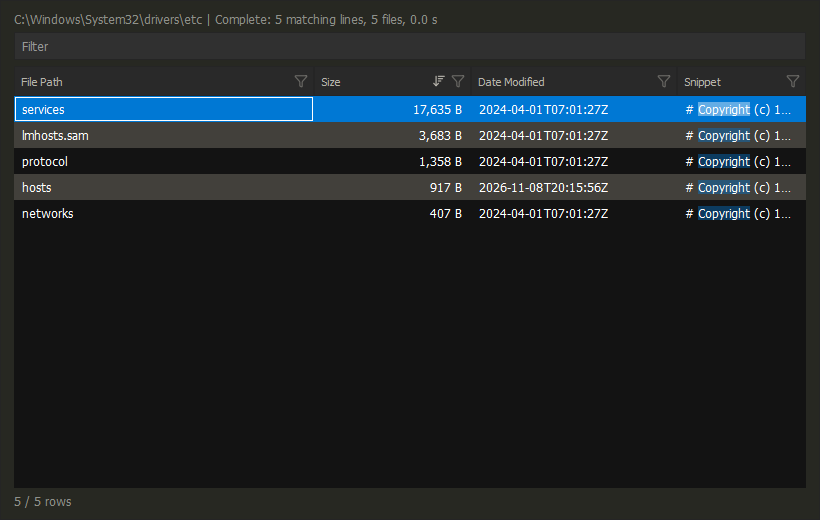
Results open in a results table with File Path and Snippet columns: one row per matching line, or per file in a name-only search.
Turn on Extended to add Size and Date Modified columns. Click a
column's funnel icon, or press Alt+Down, to filter by size or date. Words in
the filter box must all appear; use "quotes" for a phrase.

Find INI Files That Mention Fonts
Set File Name Pattern to *.ini and keep its mode set to Glob.
Set Content Pattern to fonts and keep its mode set to Literal.
Enable Recursive then press Search.
Results Table
Search Files and Find files with fd show their results in a table.
The table holds the results of one run. Narrow it down, then jump to a file.
It never reruns the search: close it to change the form and search again.
Filtered table rows are not marks in a file pane. They do not become a group for F5, F6 or Delete. Use Go To for one result, then choose targets in the pane. See which items will change and the find-and-edit workflow.
| Key | Effect |
|---|---|
| Typing in the filter box | Keep the rows that match |
| Ctrl+F | Focus the filter box |
| Up / Down in the filter box | Move to the rows |
| Ctrl+Enter, double-click | Go To the file or folder of a path cell |
| Alt+Down | Filter menu of the current column |
| Enter, Esc | Close the results and return to the Panel |
| Right-click | Copy, Go To and filter commands of the cell |
Go To opens the folder of a file and highlights it, or enters a folder. It closes the results and focuses the pane. Enter does nothing while no row is visible.
Sort: click a header to cycle ascending, descending and the original order. An arrow marks the sorted column.
Filter box: a fuzzy match over the text columns; rpt pdf finds
annual report.pdf. In Search Files Extended mode, every word must appear
instead, and "quotes" keep a phrase together.
Column filters: click a header's funnel, or press Alt+Down. The funnel is highlighted while its filter is active.
| Column | Filters |
|---|---|
| Path, Snippet | Fuzzy or Contains text |
| Size | =, <, ≤, >, ≥, Between, Missing; B, KiB, MiB or GiB |
| Modified, Date Modified | On, Before, After, Between, Missing; YYYY-MM-DD |
A row is shown when it passes the filter box and every column filter. Clear All Filters in the menu resets them. Missing sizes and dates sort last and match only Missing.
The line above the table repeats the search folder and summary. The count
below the table shows visible and total rows; truncated follows it when a
limit or Stop left rows out.