File Management, Focused
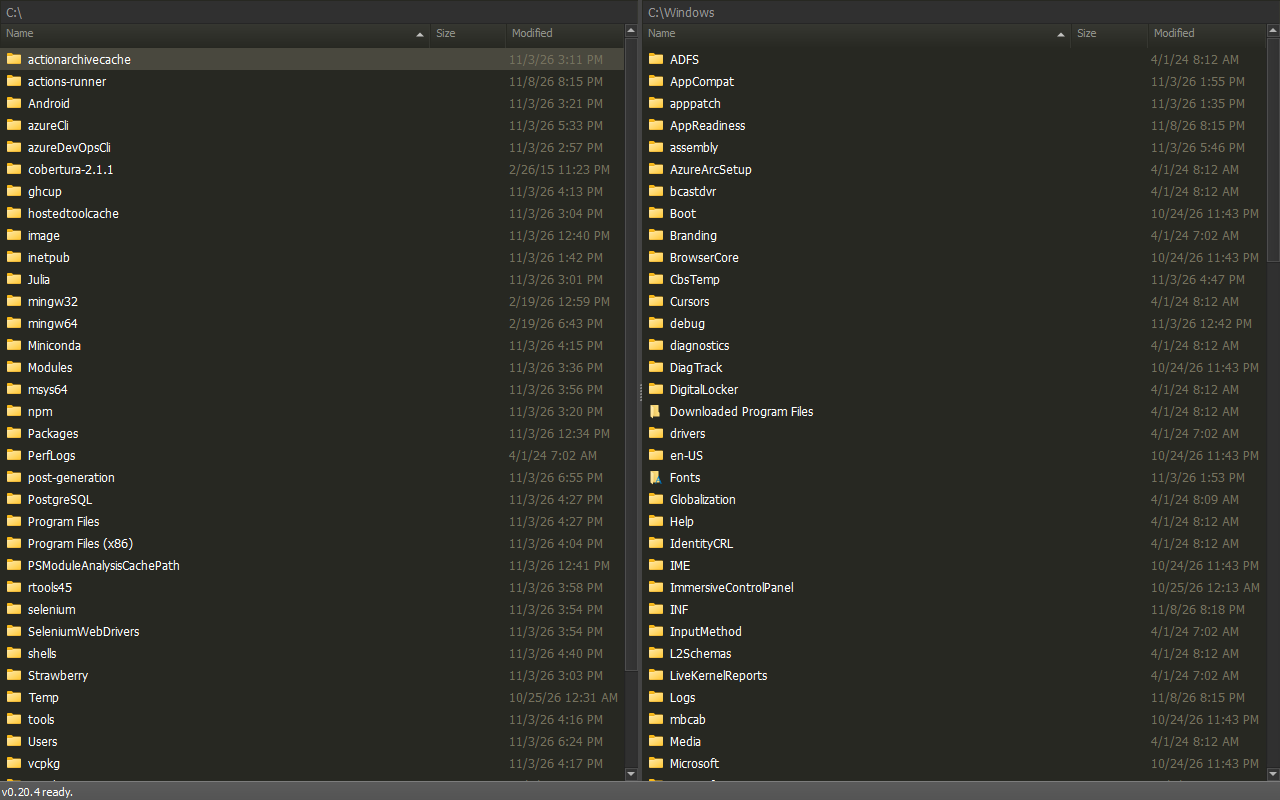
RoyiFileManager shows two folders at once (Dual Pane).
Open a source on one side. Open a destination on the other. Then copy or move.
Release Availability
Some instructions below require an Unreleased development build, including pane swapping, pattern selection and numbered duplicate suggestions. Check feature availability for the full list.
Start Here
| Action | Key |
|---|---|
| Switch panes | Tab |
| Open | Enter |
| Go up | Backspace |
| Select | Space |
| Copy | F5 |
| Move | F6 |
| New folder | F7 |
| Delete to Recycle Bin | F8 |
At a drive root, Backspace opens the drive list and highlights that drive.
See Everyday Workflows for complete tasks and which items a command uses.
Transfer Files Between Panes
- Open the source folder in one pane and the destination folder in the other. Press Tab to switch panes.
- In the source pane, use Space to mark the files you want. With no marked files, the file under the cursor is the target.
- Press F5 to copy or F6 to move the chosen files into the other pane's folder. Review any confirmation before proceeding.
- Switch to the destination pane to check the result.
See Keyboard Shortcuts for more file operations.
Press Ctrl+U to swap the two pane locations without moving files.
Drag and Drop
Drag files onto a pane or a folder in it, from the other pane or from Explorer. As in Explorer:
| Drop | Action |
|---|---|
| Onto a folder on another drive | Copy |
| Onto a folder on the same drive | Move |
| With Ctrl held | Copy |
| With Shift held | Move |
Network shares count as separate drives. Files dragged out of archives are always copied, including from an archive opened in Explorer (see Archives).
Duplicate In The Same Folder
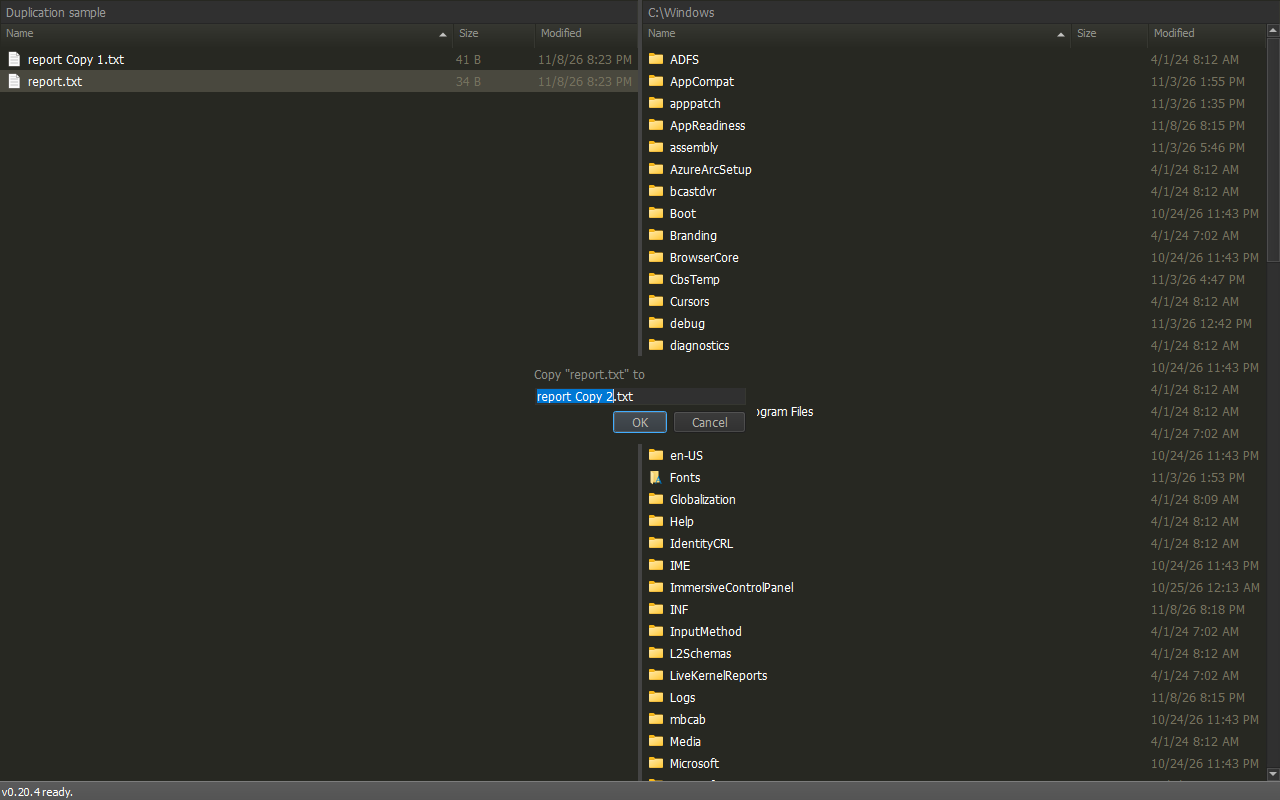
Duplicate item in Command Center, or Duplicate... in the context menu,
suggests name Copy 1.ext in the current folder.
Existing numbered copies continue the series; you can edit the suggested name.
Command Center
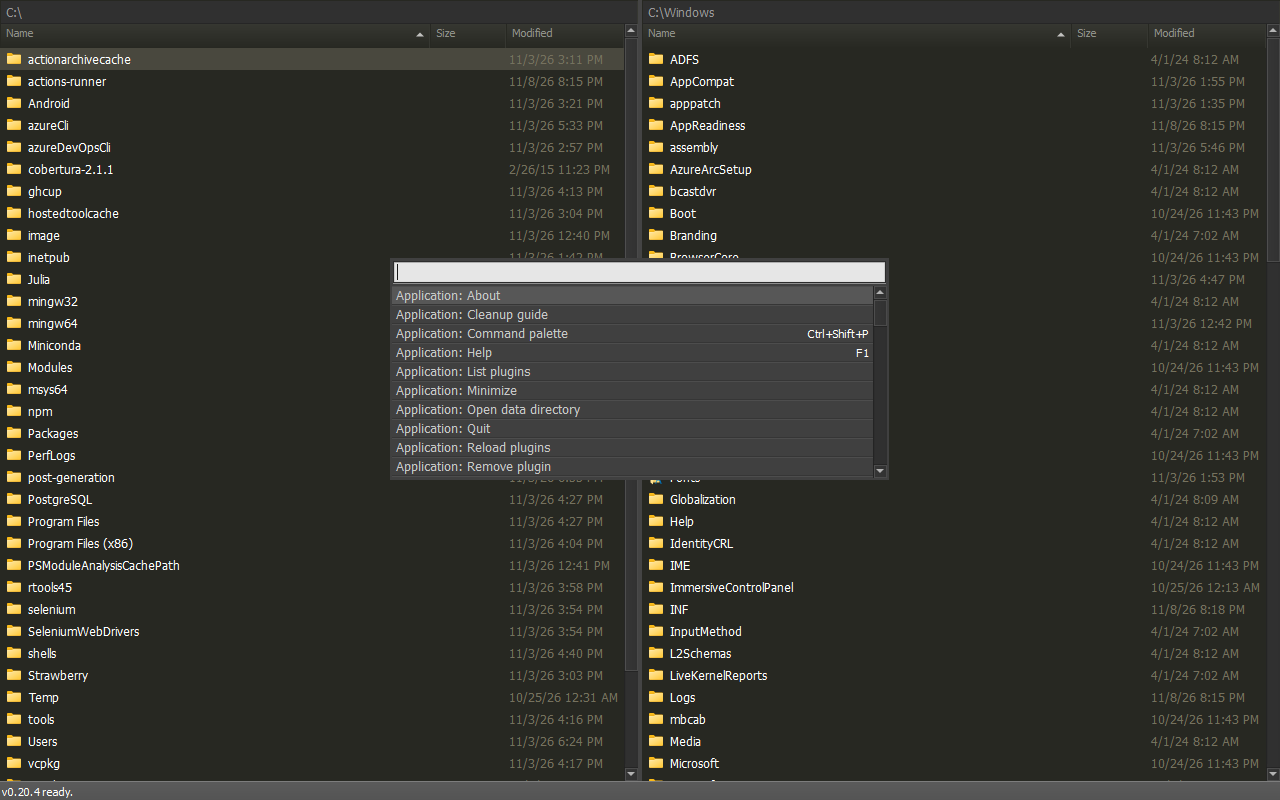
Press Ctrl+Shift+P.
Type an action. Press Enter.
The Command Center is the fastest way to discover features.
Commands are grouped by category, for example File: Copy or
Settings: Edit settings. Type a category name such as view to list its
commands, or type the command name directly.
Try Bookmarks for Favorites, Extract archive for Unpack, or Preview for QuickView. These are alternate names for the same commands.
Find a Location
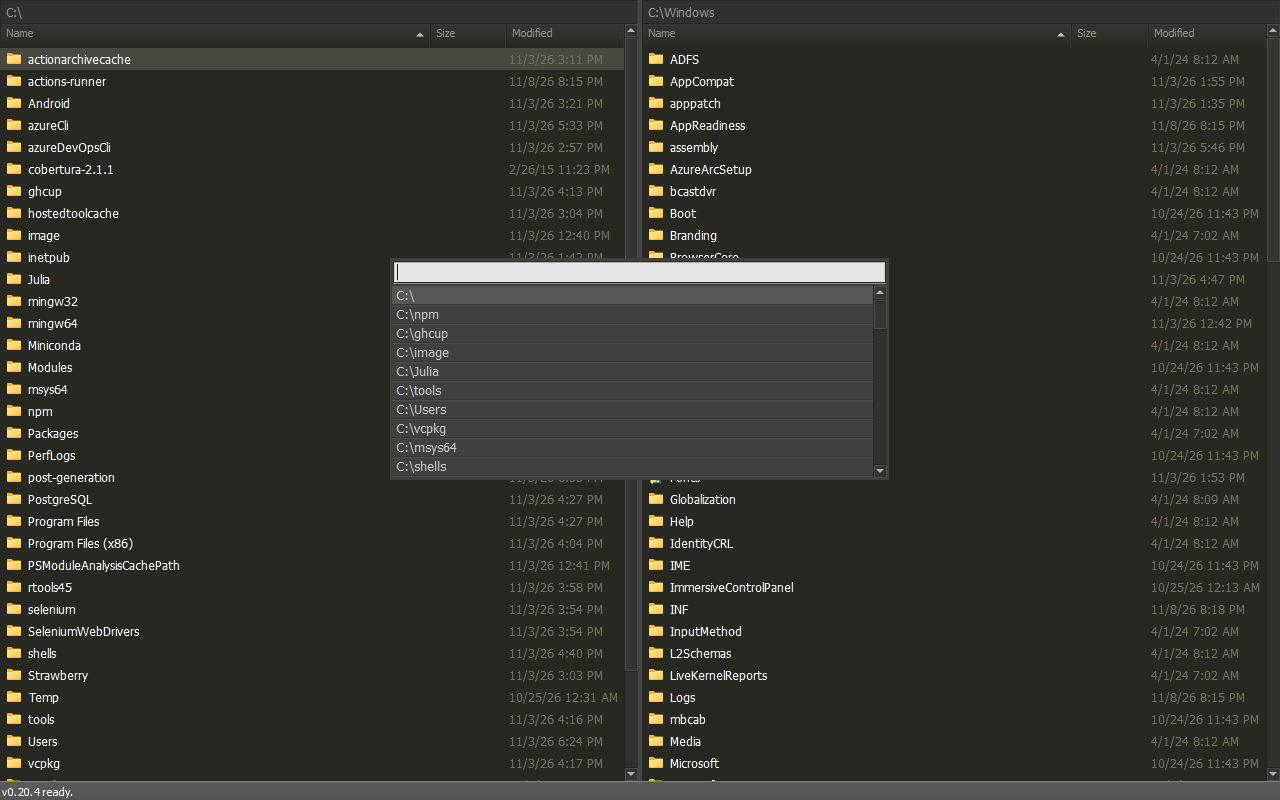
Press Ctrl+P.
Type part of a folder path. Choose a result.
Go to clipboard path opens one copied absolute path or application URL.
A file path opens its folder and highlights the file. Relative paths, multiple
lines and standard percent-encoded file:/// URIs are refused.
File paths normalize separators and ./.. before navigation; literal %20 stays literal.
Go to link target resolves the highlighted symbolic link or junction on demand. Folders open at the target; files are highlighted in their parent folder. Missing paths, link cycles, access errors and unsupported Windows namespace targets are reported without navigation.
Filter a Pane
Start typing while a pane has focus.
Use *.pdf for PDF names. Use ^report for names that start with report.
Press Esc to clear the filter.
While the Filter Bar is open, keypad +, - and * type into it; Space still toggles marks.
With NumLock off, keypad navigation and Insert retain their normal actions.
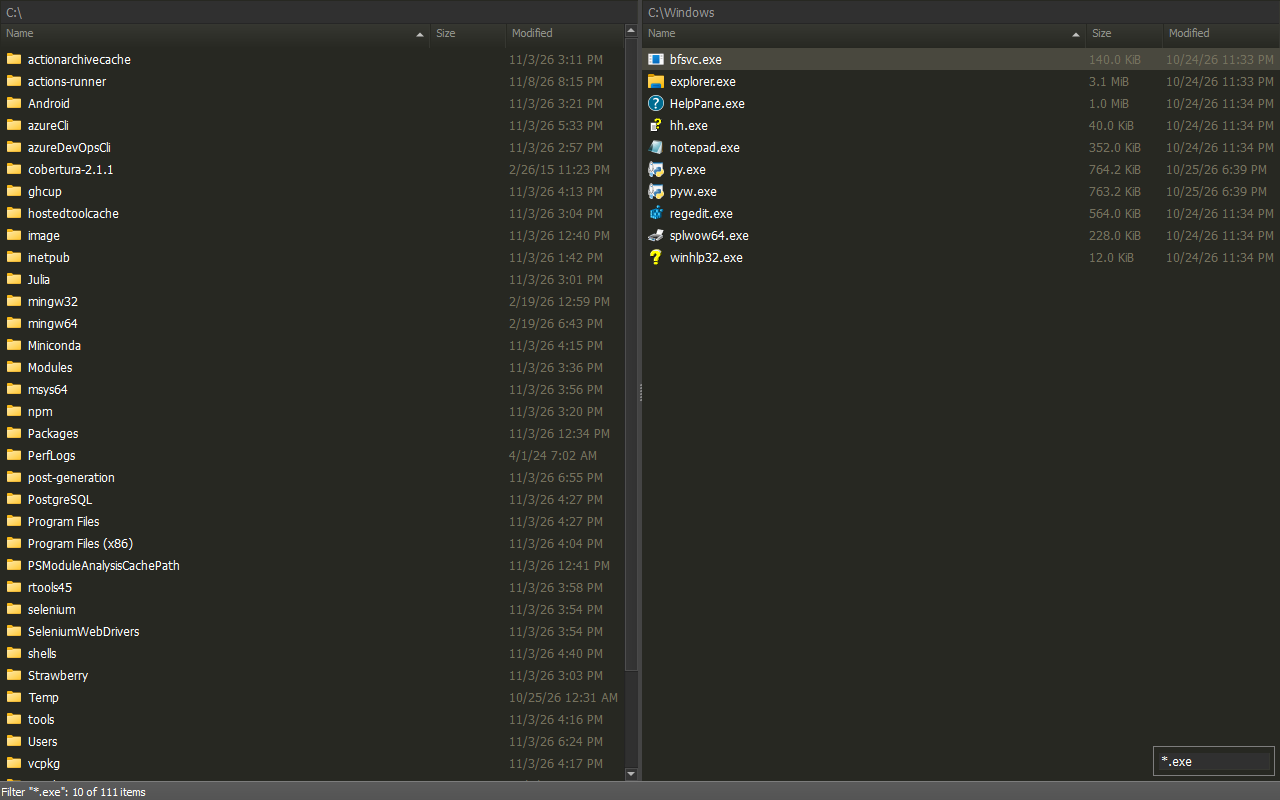
Match An Exact Extension
Pane patterns search within names unless anchored. A trailing $ means the end
of the name. Compare the same three entries:
| Name | *.pdf |
*.pdf$ |
|---|---|---|
report.pdf |
Matches | Matches |
report.pdf.bak |
Matches | No match |
report.txt |
No match | No match |
Use *.pdf$ when you want only .pdf endings. The same rule applies to
Select/Deselect by pattern, not to every search tool's Glob mode.
Select By Pattern
With the Filter Bar closed, press keypad + to select a group or keypad - to deselect a group. With a filter open, use Command Center to start these modes.
Add Matching Marks
- Mark any files you want to keep, such as
README.md. - Highlight
report.txtand press keypad +. The suggested*.txt$matches.txtendings, not.txt.bak. - Review the preview count. Enter applies it; Esc keeps the original marks.
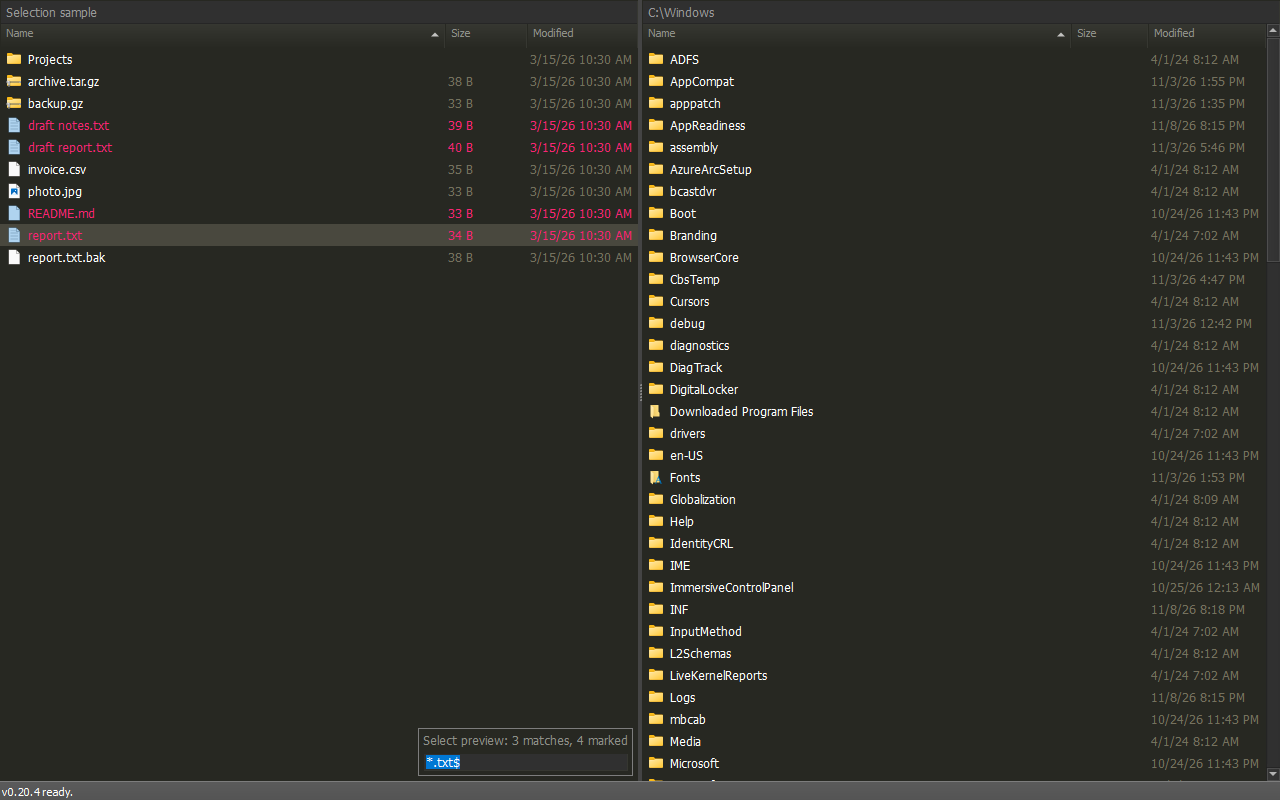
Remove Matching Marks
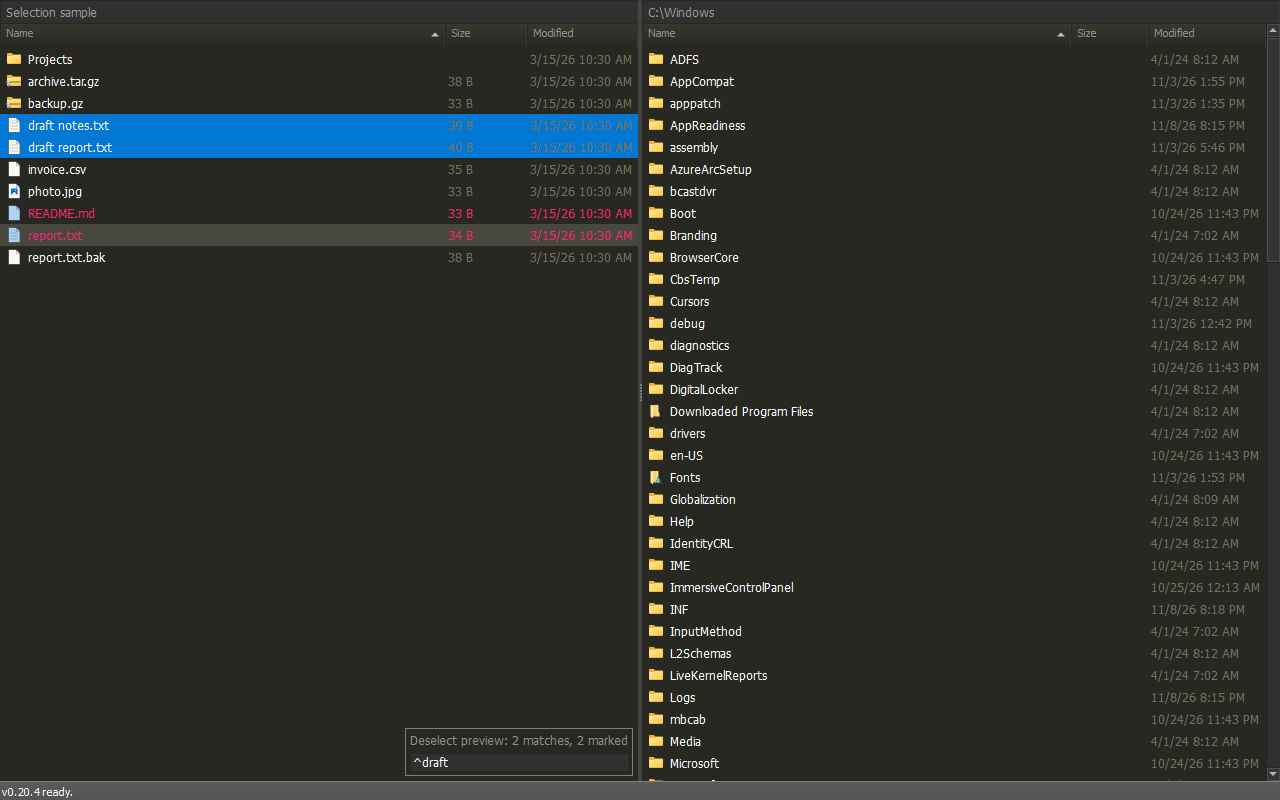
Press keypad - and type ^draft to preview removing marks from names starting
with draft. Unrelated marks stay. Enter applies; Esc cancels.
| Pattern | Matches |
|---|---|
*.txt$ |
Names ending in .txt, ignoring case |
^draft |
Names beginning with draft |
!*.txt$ |
Names not ending in .txt |
| Empty input | Keep the original marks |
Only visible rows participate, including folders. Existing filters stay applied. Space and keypad punctuation edit the pattern while a preview is open.
Preview Is Not Applied Yet
Other commands dismiss the preview and use only the original committed marks. Press Enter before copying or deleting the previewed group.
Invert Or Match An Extension
Keypad * swaps marked and unmarked visible entries when the Filter Bar is closed. In Command Center, Invert selection also works with a filter open.
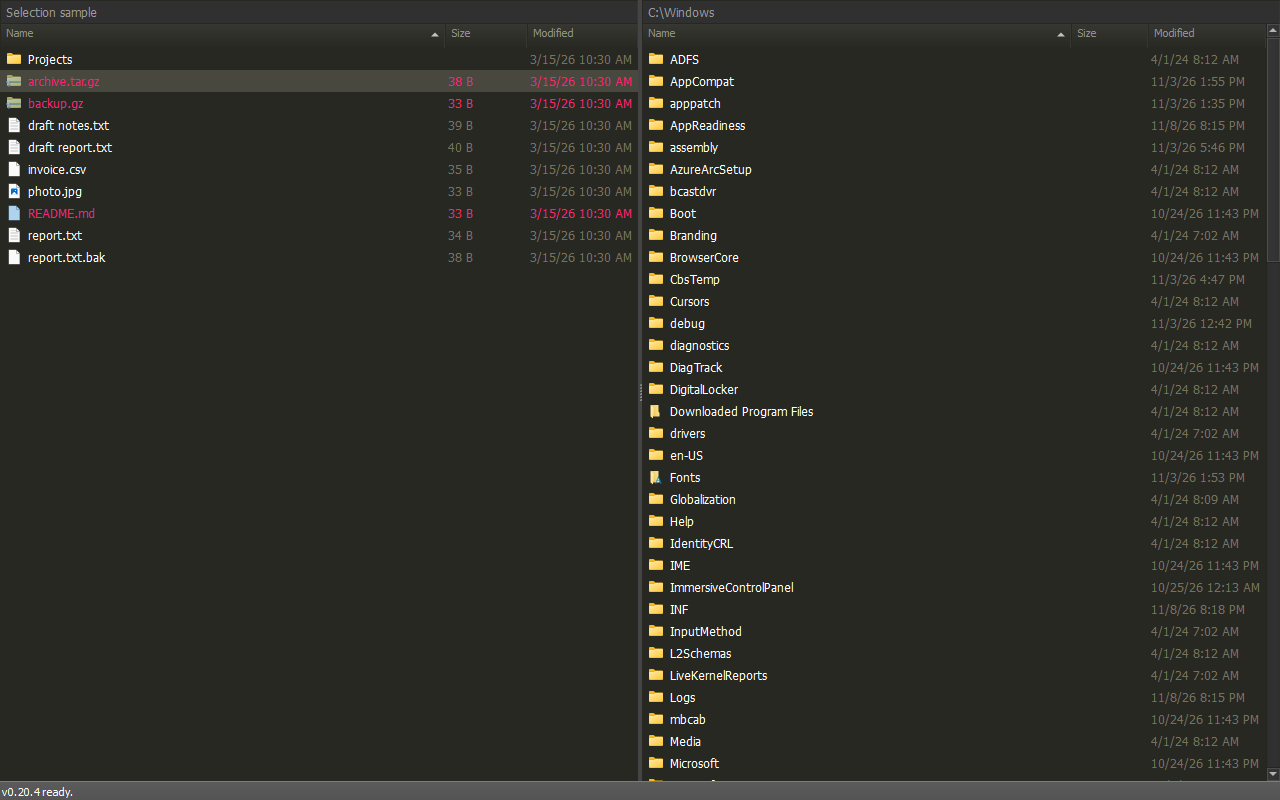
Select same extension immediately marks visible files matching the highlighted
file's final extension. archive.tar.gz matches .gz; folders are excluded and
unrelated marks stay. There is no default shortcut.
See the selection shortcuts and full pattern syntax.
Free Space
Press Ctrl+S for extended status. Local NTFS/ReFS locations show Free: available of total. Unsupported locations leave this field empty. When extended status is disabled, no free-space queries run.
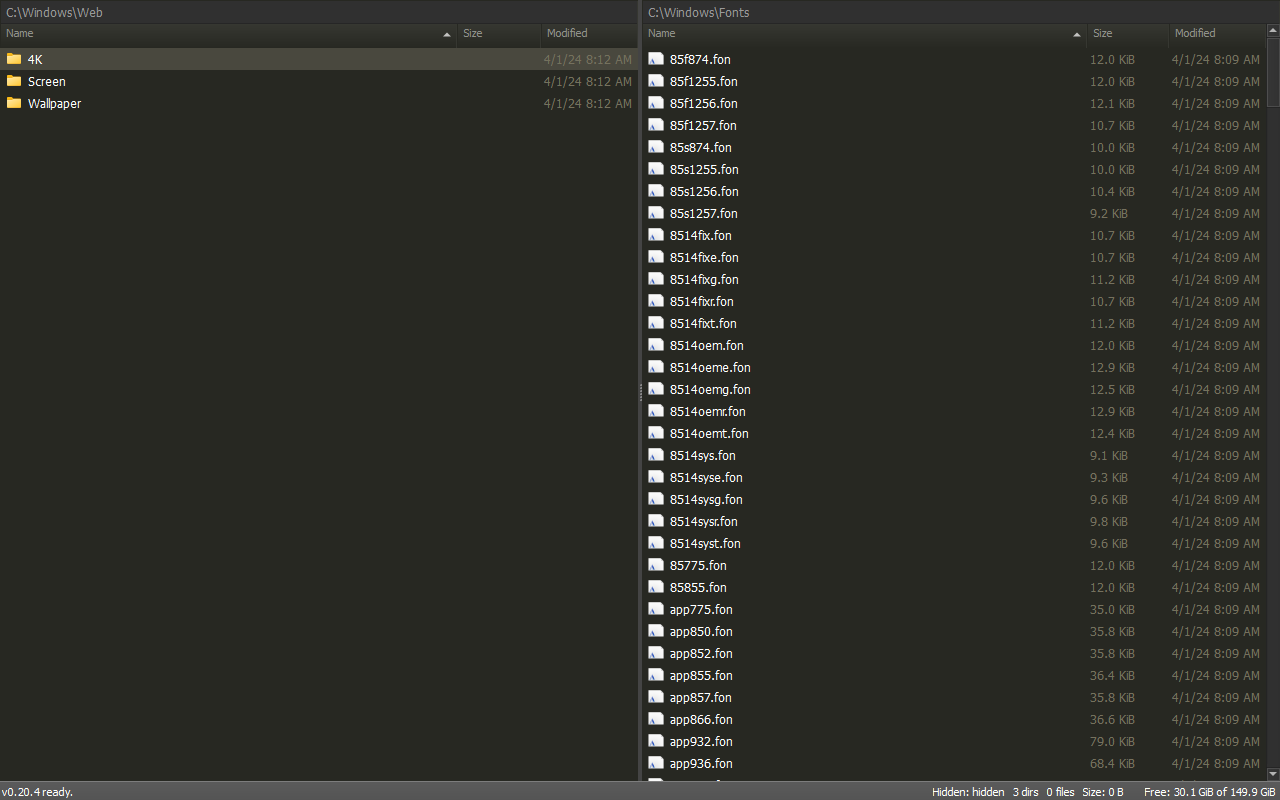
Start in Specific Folders
From PowerShell in the extracted application folder, pass one or two directory paths:
The first path opens in the left pane; the second opens in the right. Replace the example folders with ones that exist on your computer. With no paths, RoyiFileManager restores the previous pane locations.